> For the complete documentation index, see [llms.txt](https://docs.varbase.vardot.com/llms.txt). Markdown versions of documentation pages are available by appending `.md` to page URLs; this page is available as [Markdown](https://docs.varbase.vardot.com/10.1.x/content-designers/about-layout-builder/block-layout.md).
# Block Management
Blocks in Layout builder
Custom Blocks are pre-built design blocks that help the user to design content faster by reusing existing blocks.
### **How to Add a Custom Block**
1. Open the desired page e.g.(Homepage).
2. Click on **Tasks \ *****Layout***.
3. Click on **Add Section \ *****Choose a layout for this section*** e.g.(1 column).
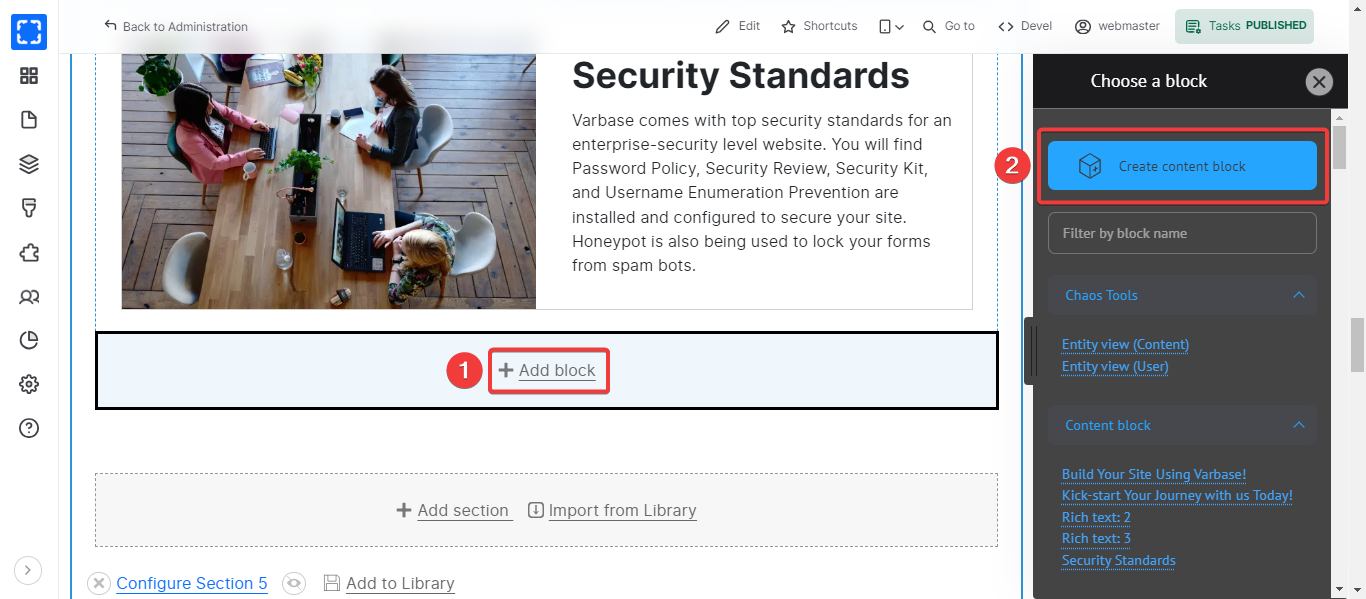
4. Click on **Add Block \ *****Create Content Block***.
Adding Custom Block
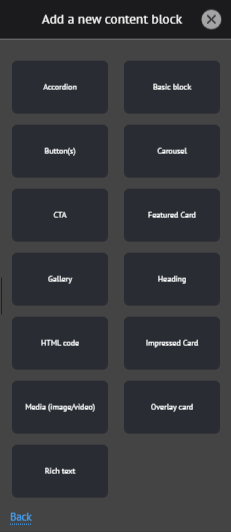
5. Select the desired block.
Adding Block
### How to edit a custom block
1. Open the desired page e.g.(Homepage).
2. Click on **Tasks \ *****Layout***.
3. Navigate to the desired block.
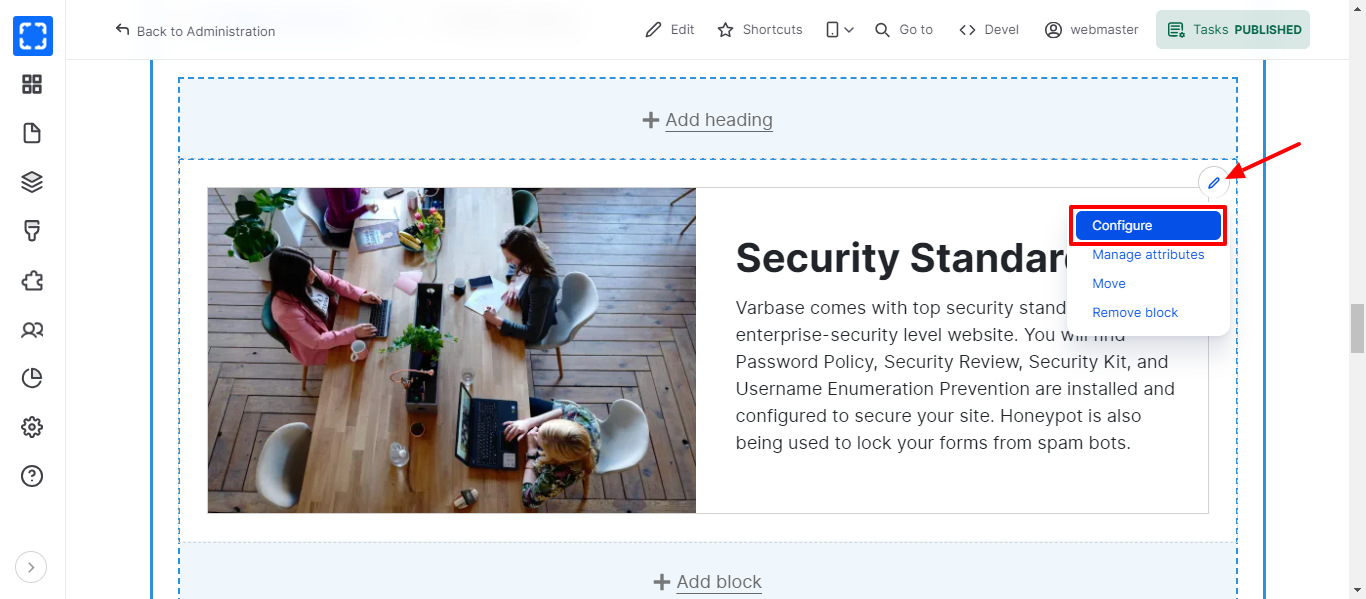
4. Click on the **Block Configure** **icon**.
5. Click on ***Configure*** button.
Configure Block
6. Edit the block fields.
7. Click on **Update** button.
8. Click on **Save layout.**