> For the complete documentation index, see [llms.txt](https://docs.varbase.vardot.com/llms.txt). Markdown versions of documentation pages are available by appending `.md` to page URLs; this page is available as [Markdown](https://docs.varbase.vardot.com/10.1.x/content-designers/about-layout-builder/section.md).
# Section
## How to Add Section
When we are creating a new section, it is required to choose a specific section layout. Here are some common section layouts:
* **One Column:**
* Full Width.
* Boxed.
* Edge to Edge.
* **Two Columns:**
* 50% - 50%
* 25% - 75%
* 33% - 67%
* **Three Columns:**
* 33% - 33% - 33%
* 25% - 50% - 25%
* 50% - 25% - 25%
Using "Two Columns" section layouts allows users to divide a section into two or more blocks. However, this limits the number of columns per section. To have more control, users can manually add columns using the "Columnized Static Content" block.
We could also add styling to each section by assigning the section to different CSS classes.
To add a section to a specific page on the site, follow these steps:
1. Open the desired page e.g.(Landing Page).
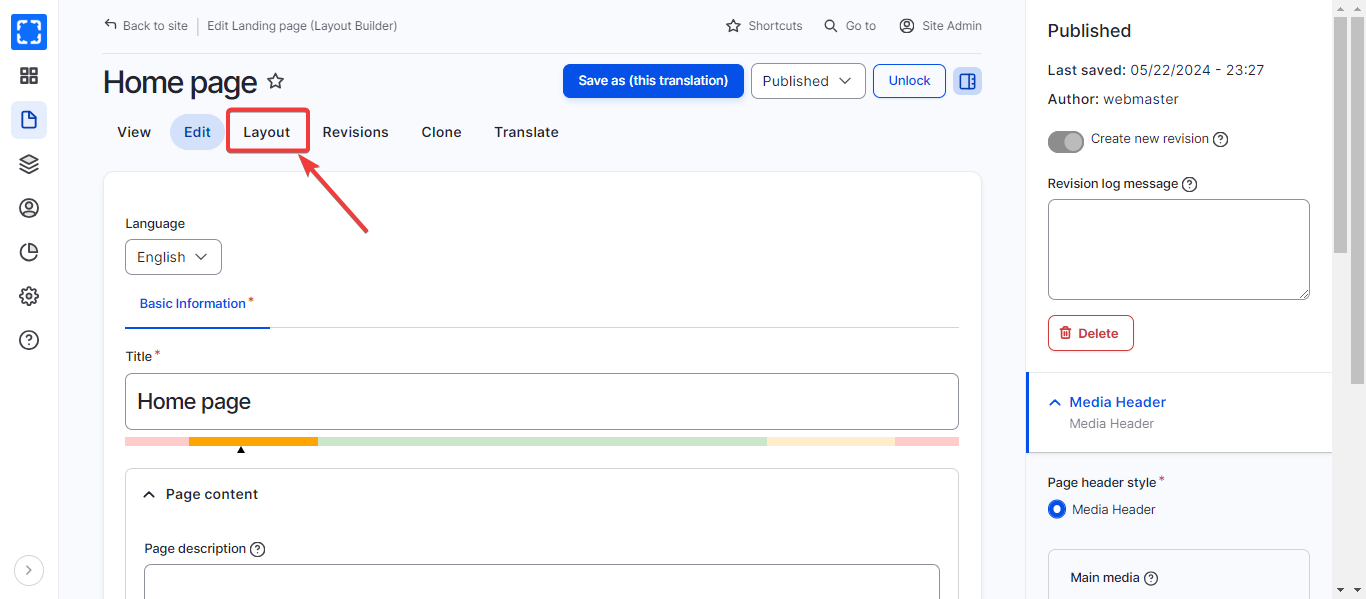
2. Click on the **Layout** tab at the top of the page.
Edit Landing Page - Layout Builder
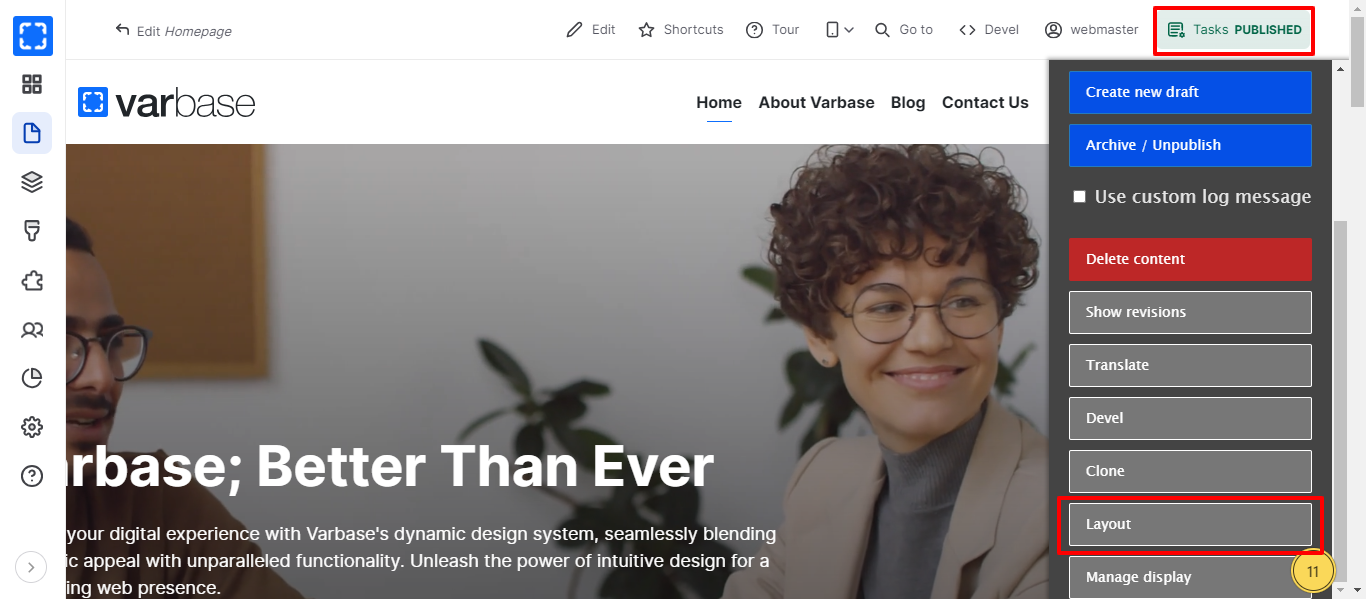
3. Or you can navigate the layout builder by clicking on **Tasks/*****Layout.***
Navigate the Layout from the Task Bar
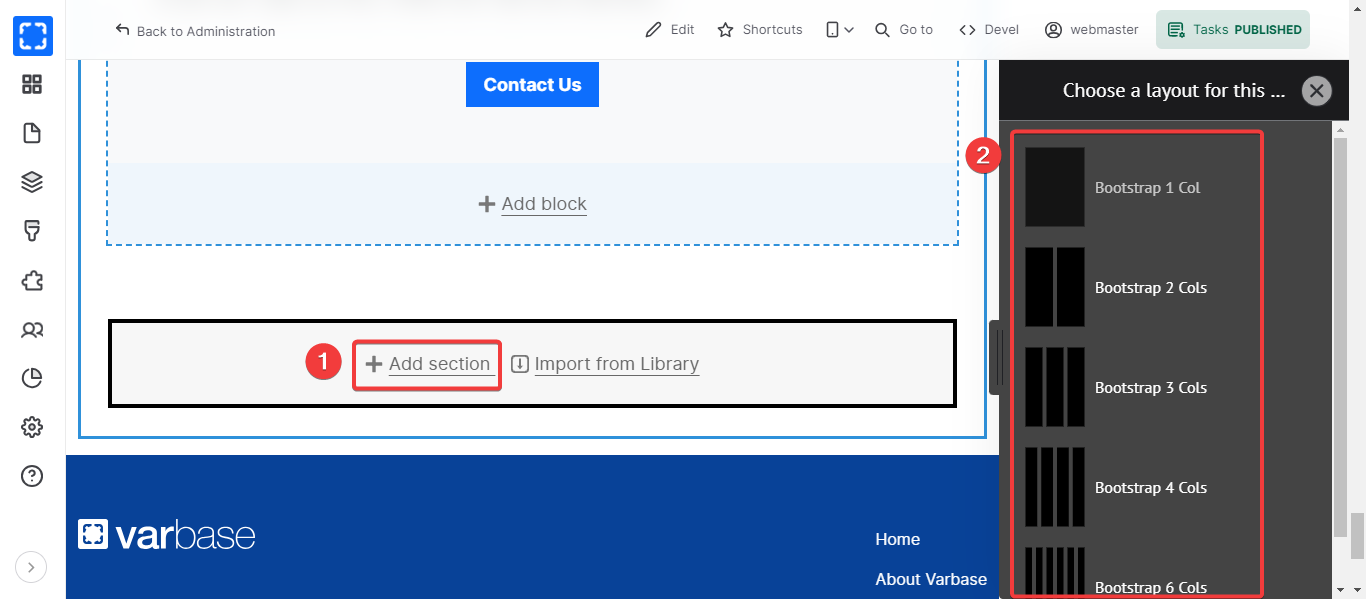
4. Click on **+ ADD SECTION.**
5. Choose a layout for this section e.g.( Bootstrap 1 Col).
Add Section
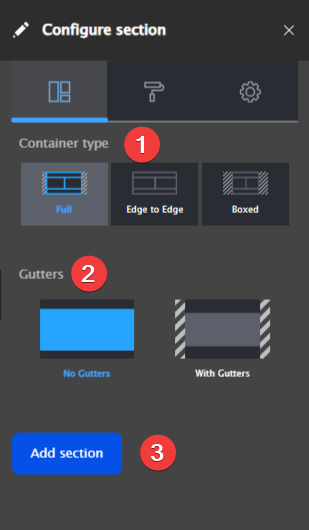
6. Choose from the **Container Types** options e.g. (Full).
7. Choose from the **Gutters** options e.g. (No Gutters).
8. When you finish all the needed updates click on **Add Section** button.
Adding 1 Col Section
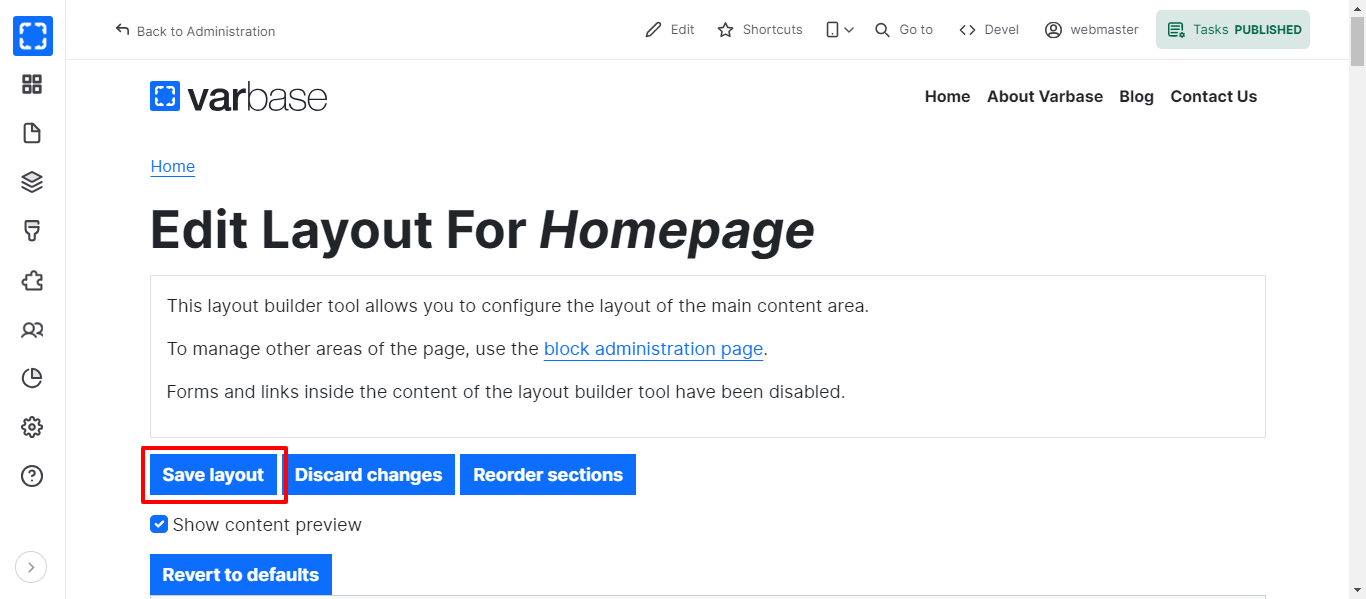
9. Click on **Save Layout** to save the added section.
Save Layout
## How to Edit/Delete Section
In order to edit a section to a specific page on the site, follow these steps:
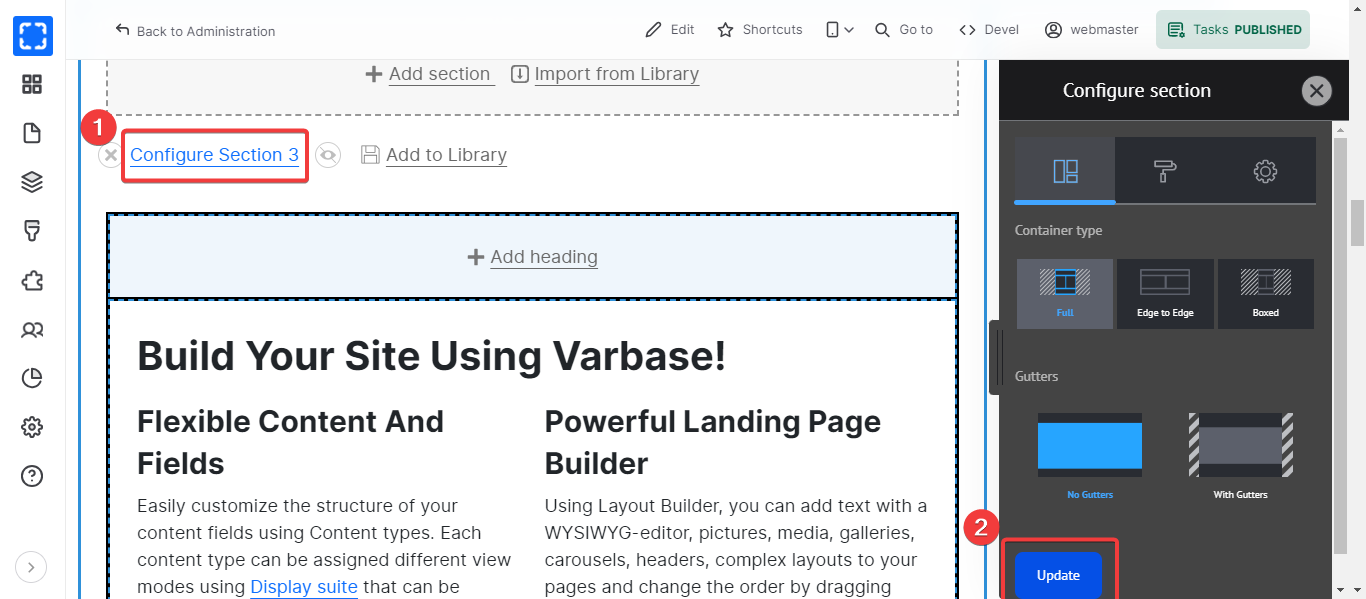
1. Click on **Configure Section** link.
2. Update the **Configure Section** then click on **Update** button.
Edit Section
In order to delete a section to a specific page on the site, follow these steps:
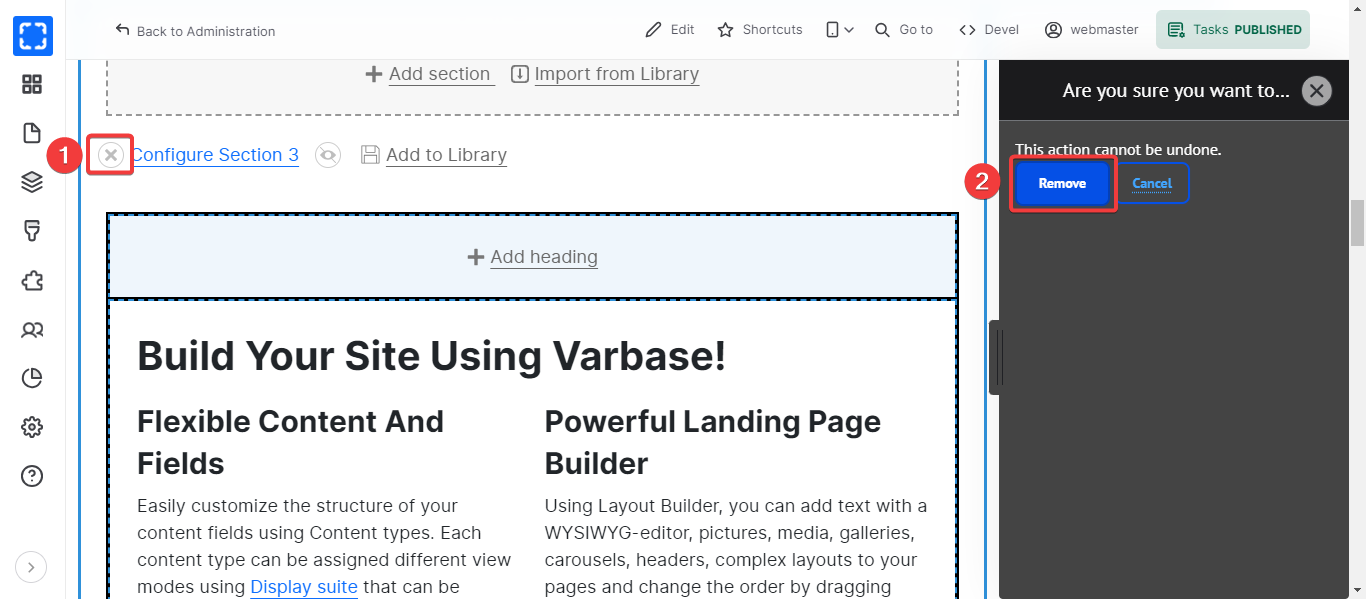
1. Go to the section to be deleted and click the "**X**" icon.
2. Confirm to delete the section by clicking **Remove** button.