> For the complete documentation index, see [llms.txt](https://docs.varbase.vardot.com/llms.txt). Markdown versions of documentation pages are available by appending `.md` to page URLs; this page is available as [Markdown](https://docs.varbase.vardot.com/10.1.x/content-designers/content-structure/menu-management/add-menu-items.md).
# Add Menu Items
Add new item into the menu.
### **Adding Link to Menu**
In order to add a new link to one of the menus, follow these steps:
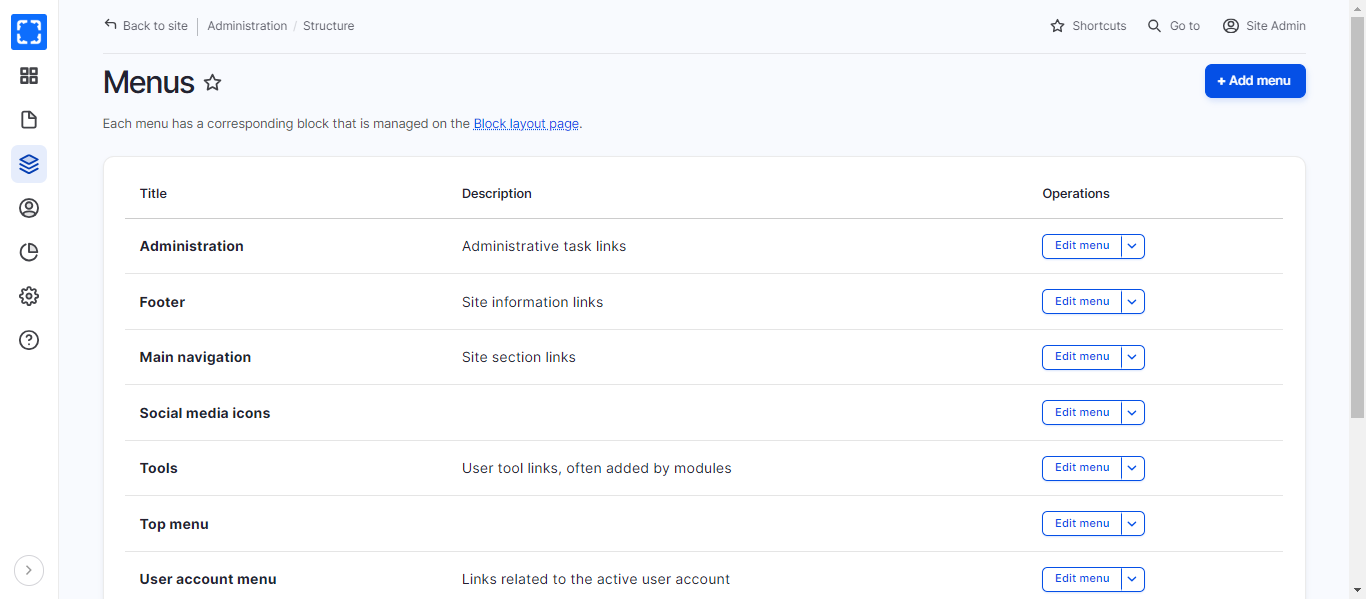
1. Click **Manage\Structure\\*****Menus***.
Menus
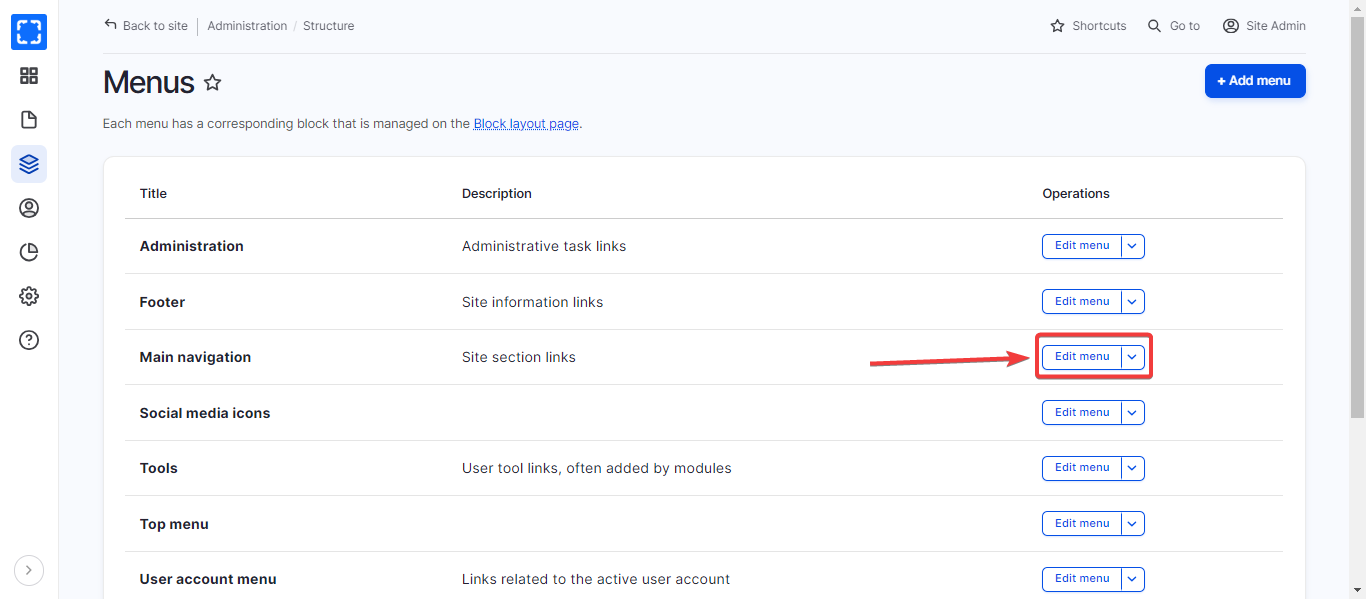
2. Select the menu you want to add to. For example, **Main navigation.**
3. Click **Edit menu.**
Edit Menu
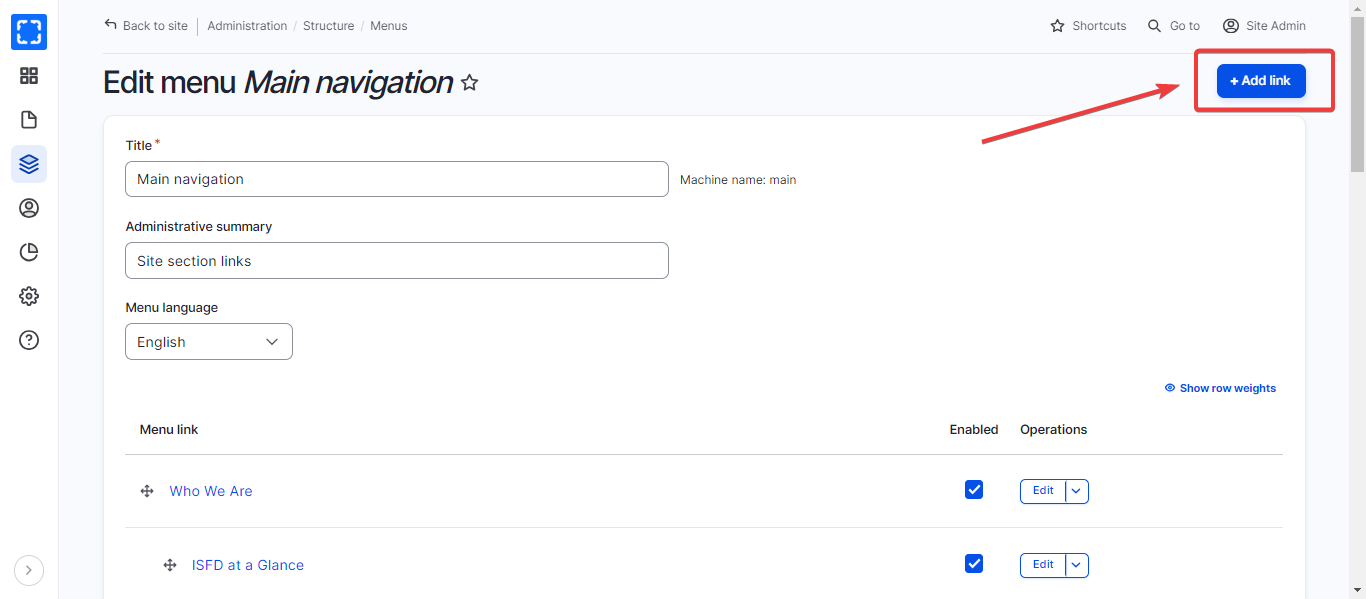
4. Click on **Add link** button.
Add a Link to the Menu
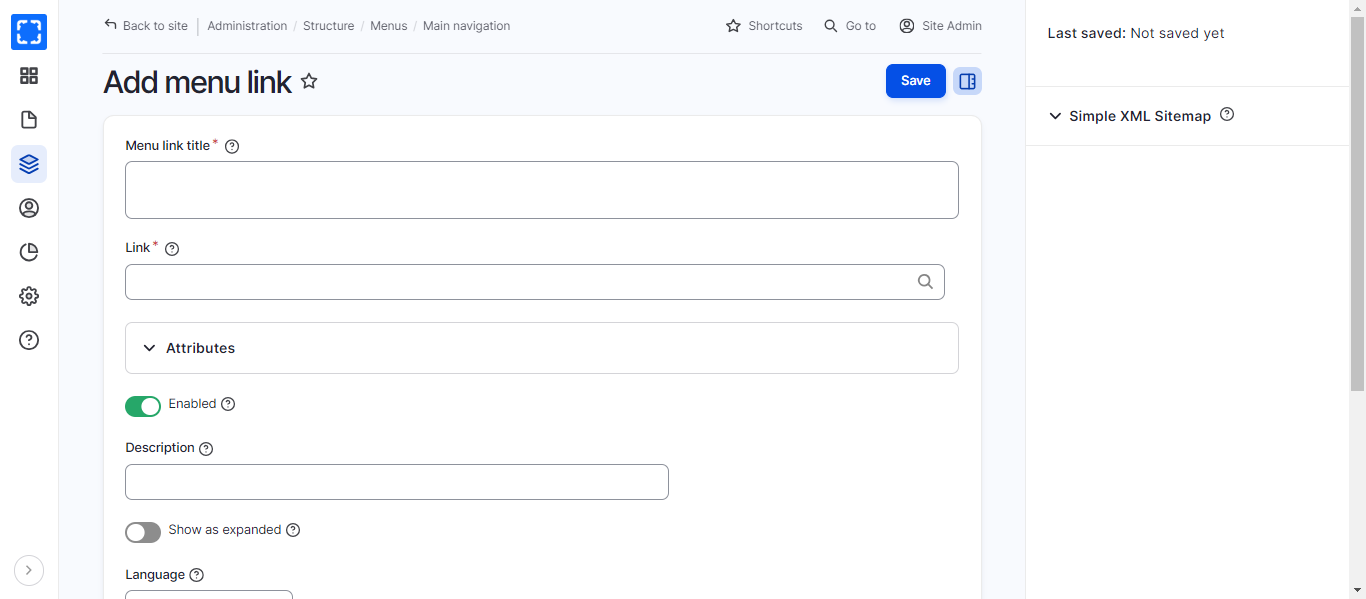
5. A separate page will load with fields. Users should insert the menu link title (the title you want to appear to the user) and the path (the url you want the link to send to).
Add Menu Title and Link
6. Click **Save** to add this item to the menu.
7. After Saving, navigate back to the menu to check the order of the items**.**