> For the complete documentation index, see [llms.txt](https://docs.varbase.vardot.com/llms.txt). Markdown versions of documentation pages are available by appending `.md` to page URLs; this page is available as [Markdown](https://docs.varbase.vardot.com/10.1.x/content-designers/content-translation/deleting-a-translation.md).
# Deleting a Translation
To delete any translation you have to follow one of the following ways:
### From the translations page
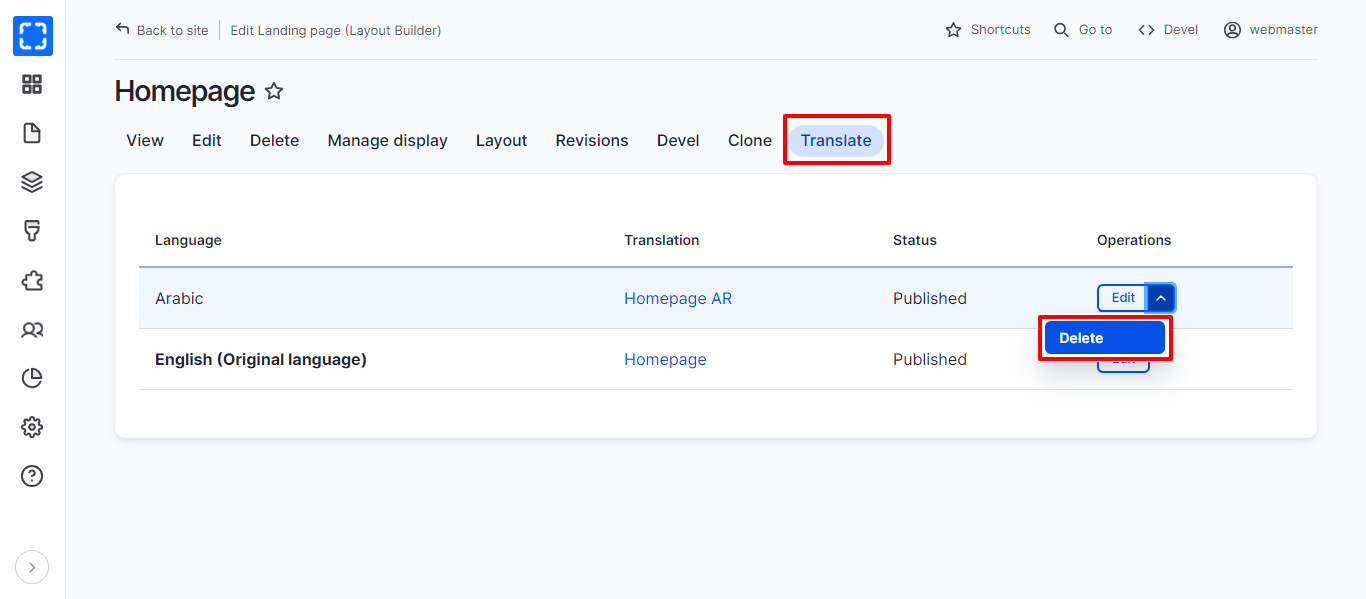
1. Navigate the translations page.
2. From the operations drop-down list click on ***Delete.***
3. Confirm the deletion.
Delete Option
### From the Task side menu
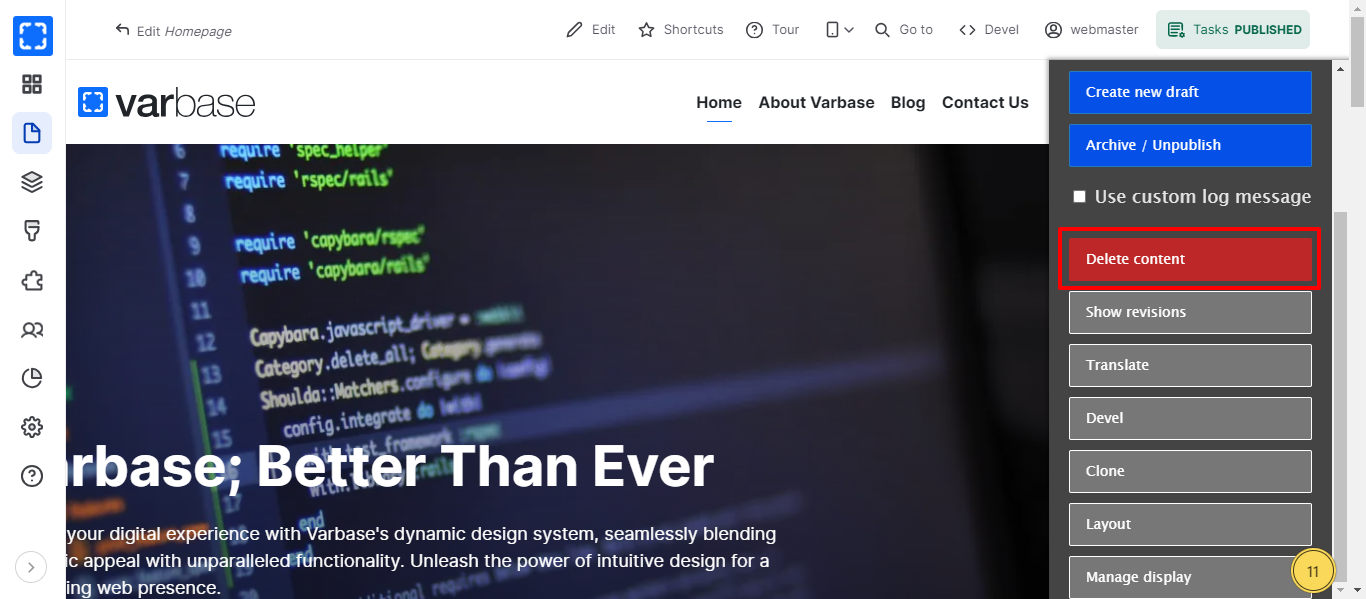
1. Navigate the translated node page you want to delete.
2. From the task side menu click on the ***Delete content*** button.
3. Confirm the deletion.
Delete from Task Side Menu
### From the node edit page
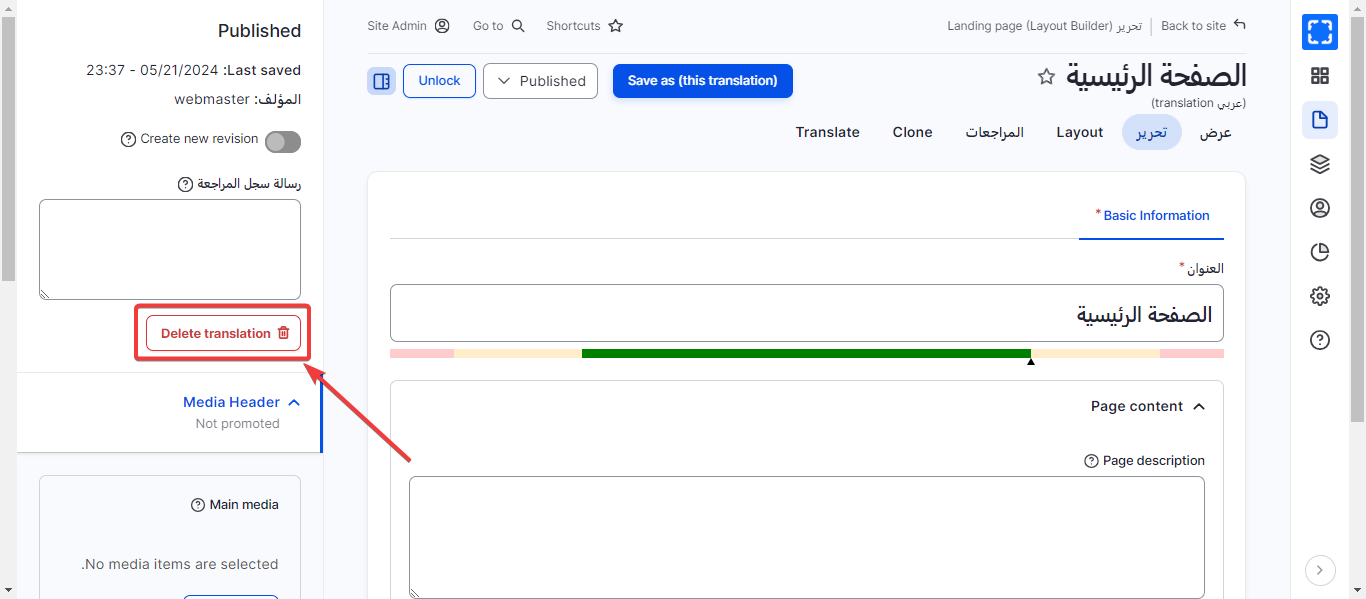
1. Navigate the translated node page you want to delete.
2. From the task side menu click on the ***Edit content*** button.
3. Click on the ***Delete translation*** button.
Delete Translation Button
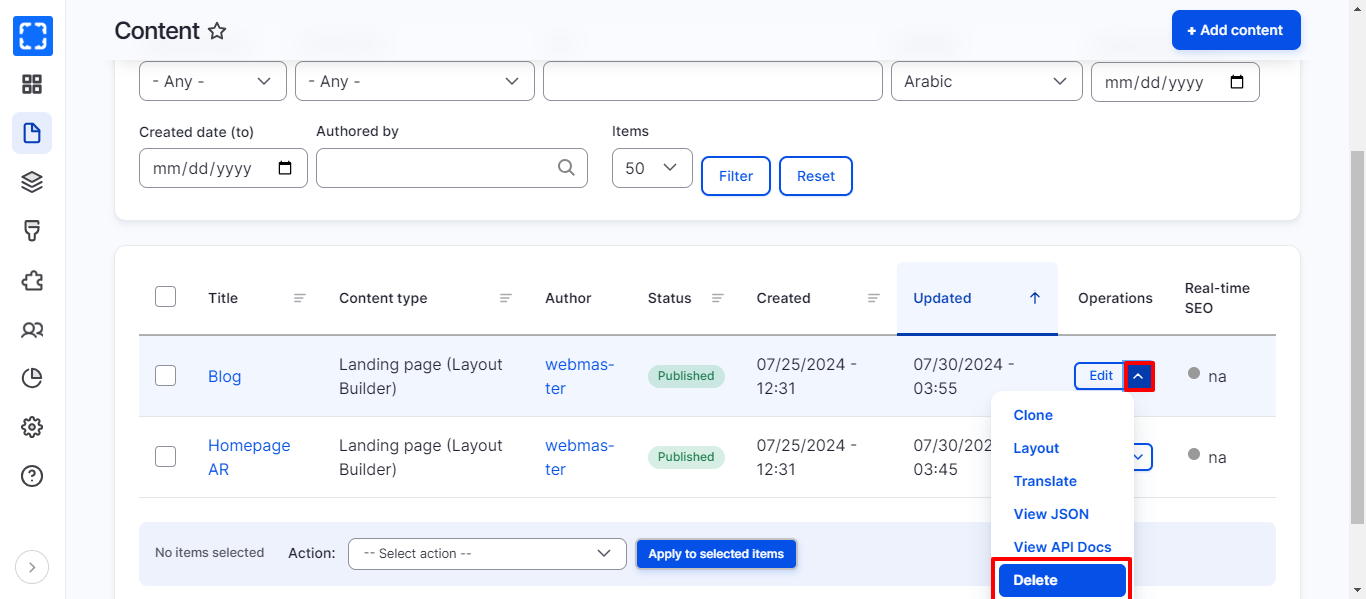
### From the content page
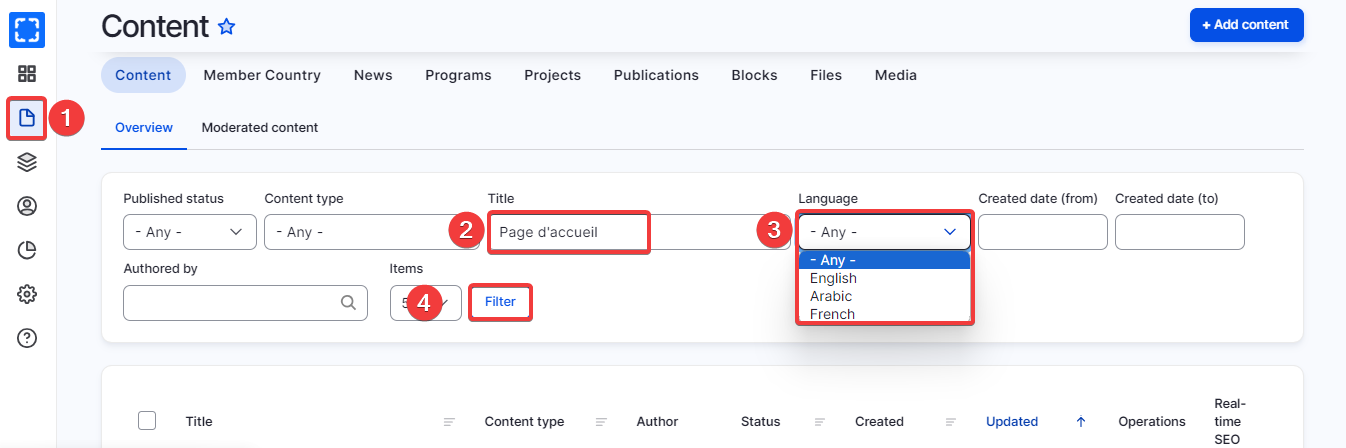
1. Go to **Manage/*****Content.***
2. From the filters select the language of the translation you want to delete.
3. Write the page name in the title field.
4. Click on **Filter** button.
5. From the operations drop-down list click on ***Delete.***
6. Confirm the deletion.
Navigate the Translation Node Page from the Filters