# Resizing Images

Here is a suggested steps to resize the images&#x20;

1. Visit the the resize image website i.e. <https://www.resizepixel.com/>.
2. Click the **Upload Image** button and upload the image you want to resize from your library.
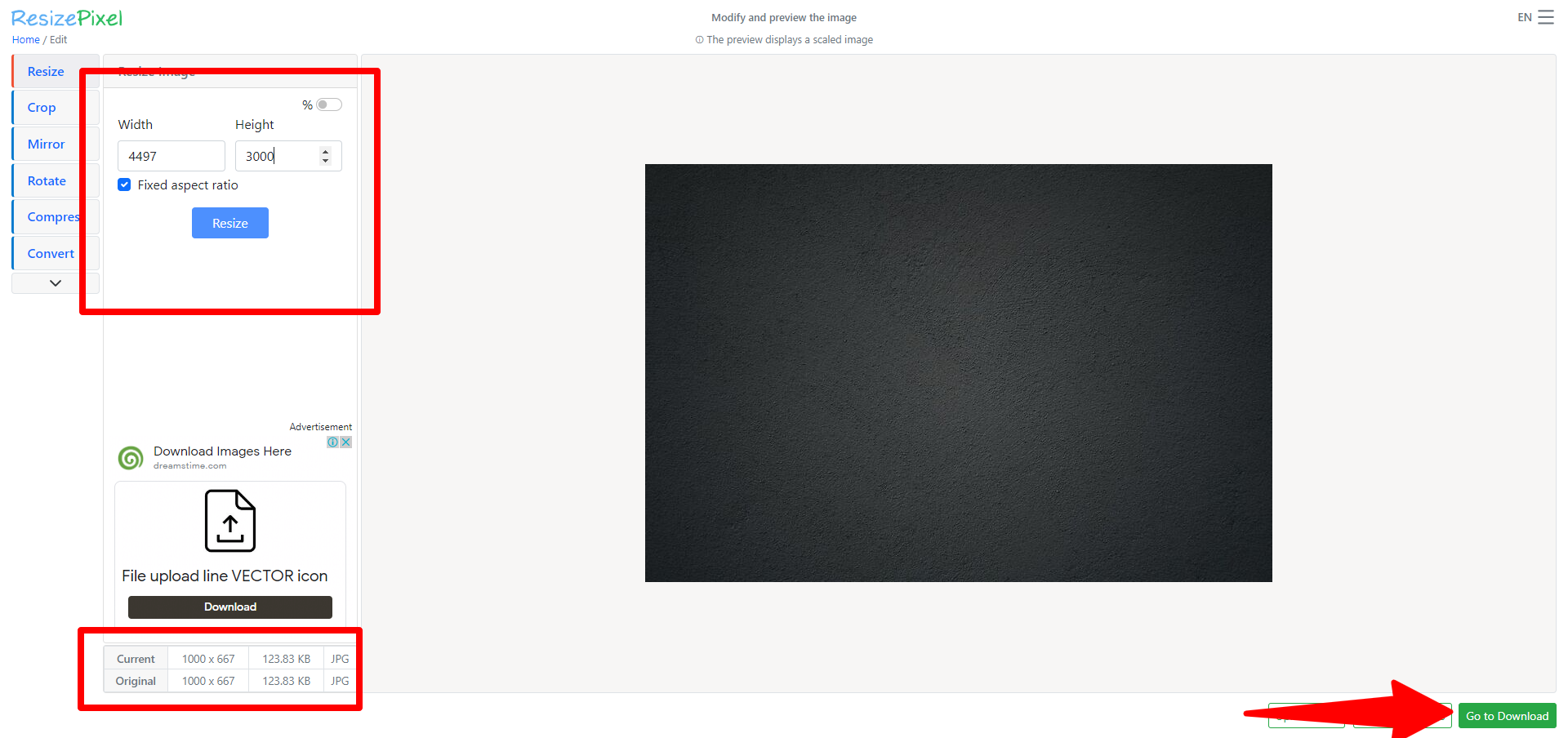
3. Edit image width and height to reduce the size of the image. e.g Reducing width from 3000 to 2500 and clicking the Resize button.
4. Click **Go to Download** to download the resized image.
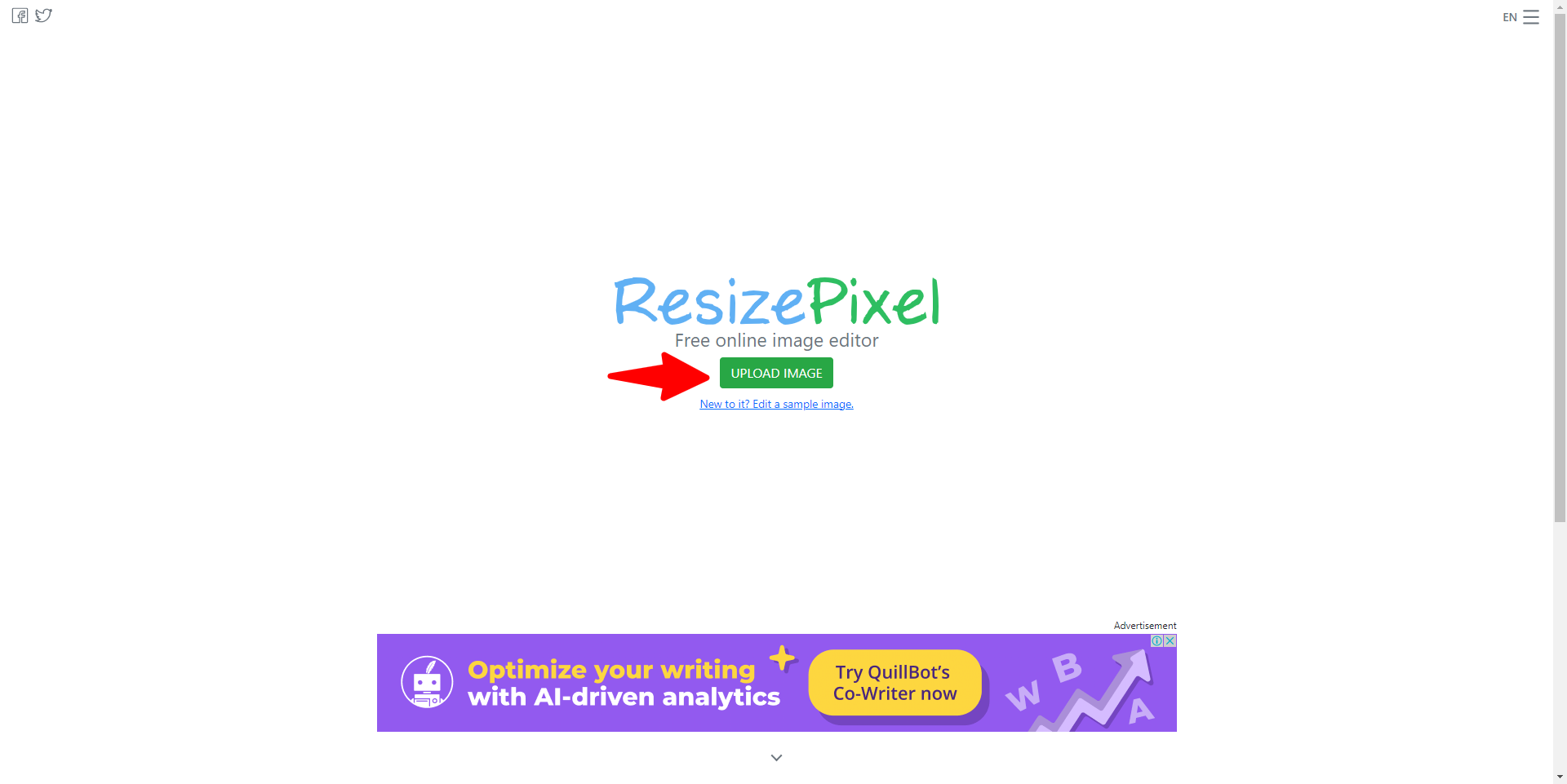
<figure><img src="/files/xVo2EfLvthAKr7Nc1Hsc" alt=""><figcaption><p>Uploading the Image to the Tool</p></figcaption></figure>

<figure><img src="/files/hxf07Fot1FdugbJlbDoG" alt=""><figcaption><p>Resizing the Image Using the Tool</p></figcaption></figure>


---

# Agent Instructions: Querying This Documentation

If you need additional information that is not directly available in this page, you can query the documentation dynamically by asking a question.

Perform an HTTP GET request on the current page URL with the `ask` query parameter:

```
GET https://docs.varbase.vardot.com/10.1.x/content-designers/media-management/resizing-images.md?ask=<question>
```

The question should be specific, self-contained, and written in natural language.
The response will contain a direct answer to the question and relevant excerpts and sources from the documentation.

Use this mechanism when the answer is not explicitly present in the current page, you need clarification or additional context, or you want to retrieve related documentation sections.
