> For the complete documentation index, see [llms.txt](https://docs.varbase.vardot.com/llms.txt). Markdown versions of documentation pages are available by appending `.md` to page URLs; this page is available as [Markdown](https://docs.varbase.vardot.com/10.1.x/content-designers/media-management/uploading-media-files.md).
# Uploading Media Files
## Media in Drupal:
Drupal Media fields are different, you can easily add images, Gallery, video, files, and other several types.\
\
You can add **Media** from several places in your website:
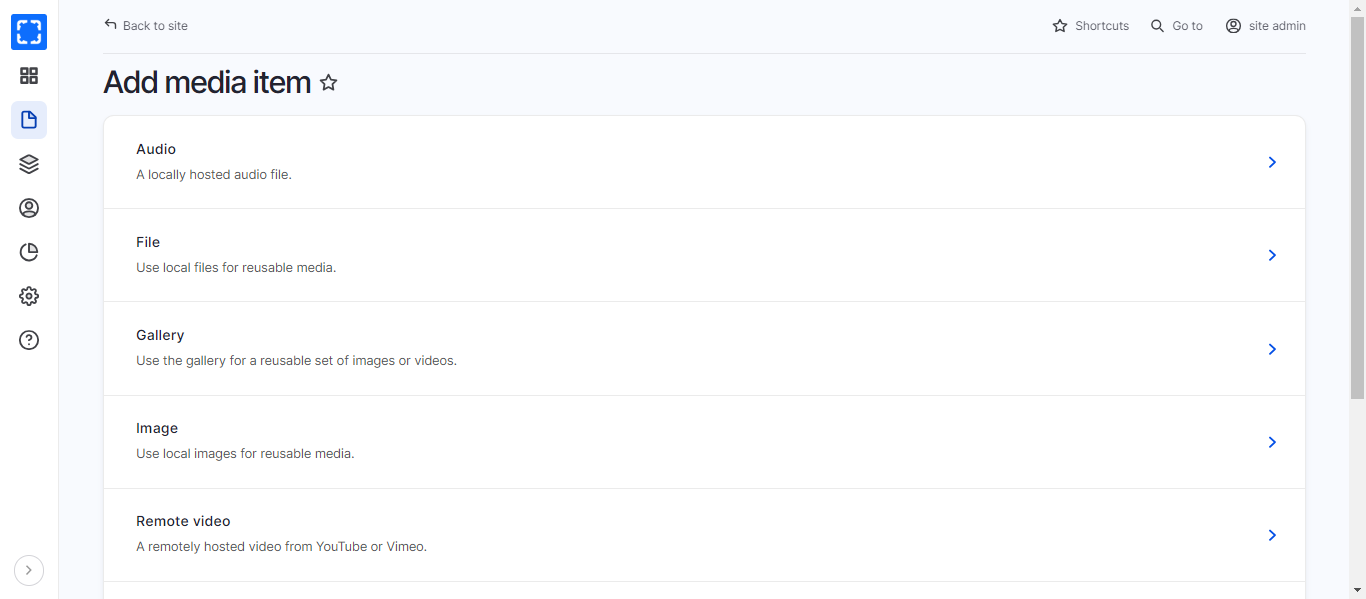
### 1. Media node page
1. Select **Media** from the **Manage** administrative menu**.**
2. Select **Add media***.*
3. Select type of the Media that you need to add.
Add New Media as a Node Item
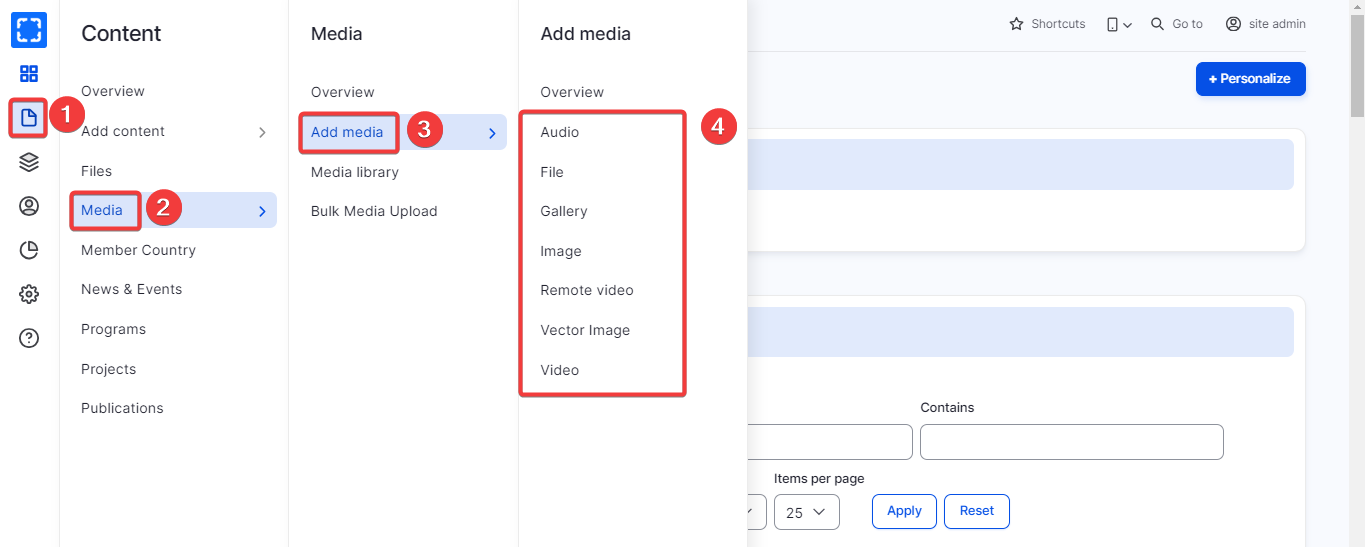
### 2. Media field
You can add **Media** from the Manage administrative menu.
Add media from the Manage Administrative Menu
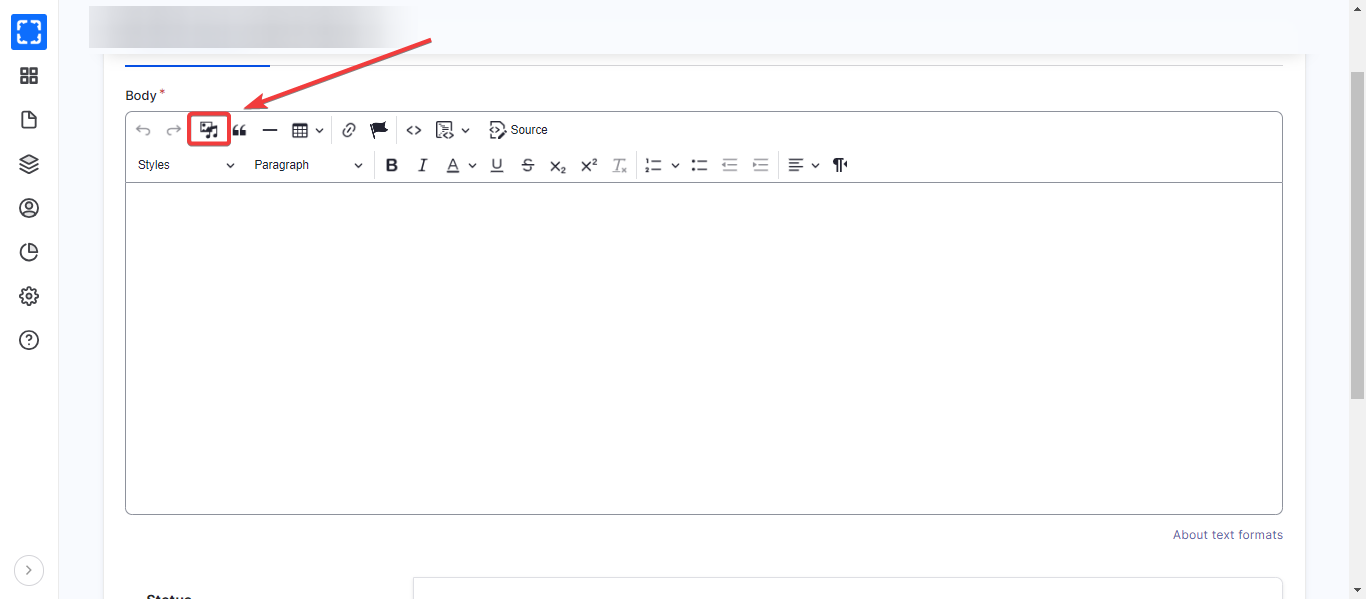
### 3. WYSIWYG
Any time you can add media in the WYSIWYG in Rich text editor.
Add Media in the WYSIWYG
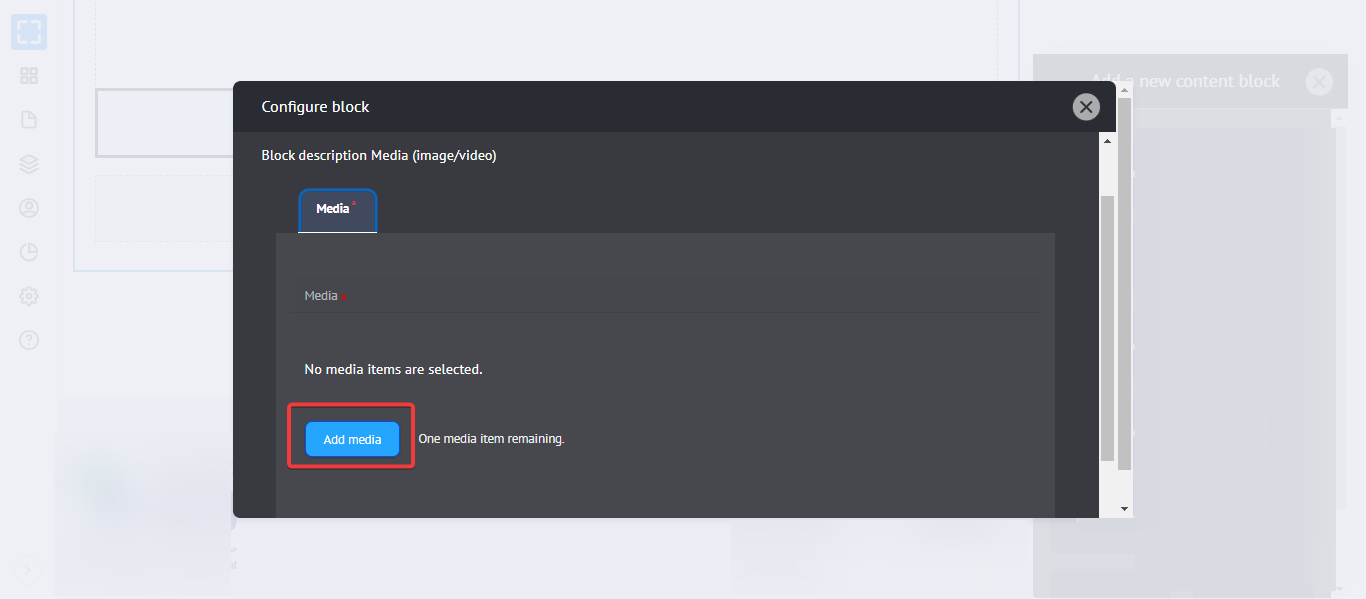
### 4. Blocks
You can upload media directly from the blocks that require adding media in the layout builder:
1. Open the layout builder.
2. **Add** a block that requires media \[ex: Media (image/video)].
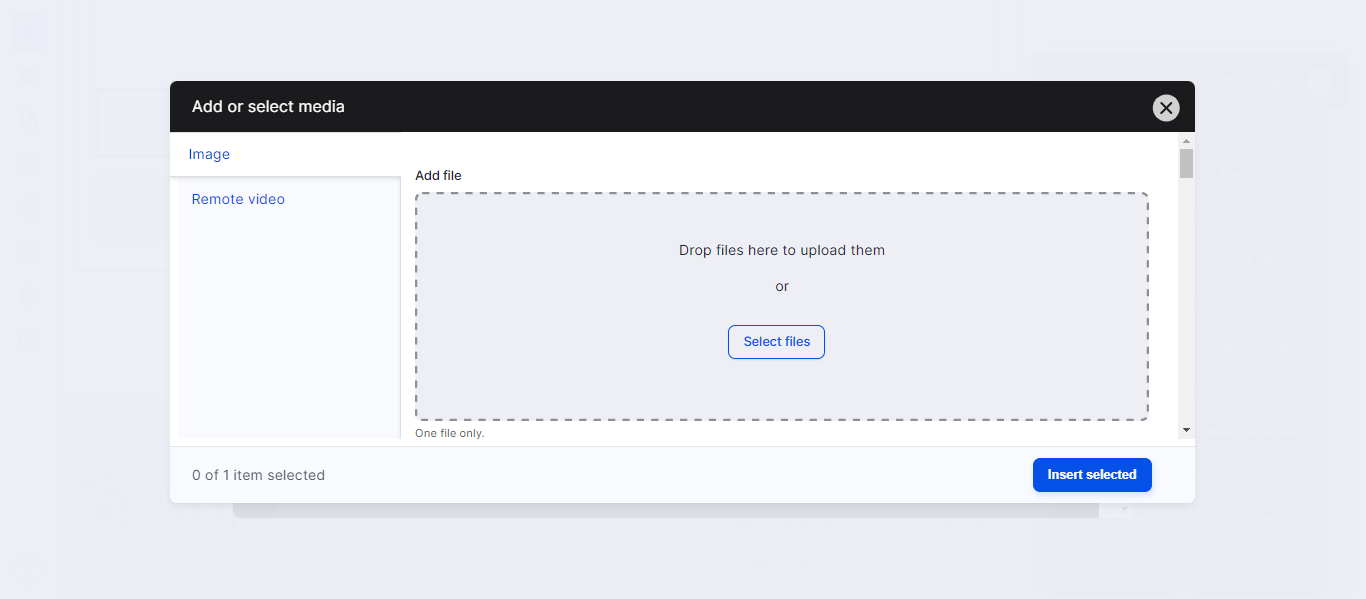
3. Click on **Add Media** button.
4. Click on **Select files** button.
5. Select the media from your device.
6. **Save** the media in the media library.
7. **Save** the block.
Adding Block from the Media Library
Add Media Window
{% hint style="info" %}
**Note:** You can edit or delete any *Media* file from the Media library page.
{% endhint %}
## In this section:
1. [Image](/10.1.x/content-designers/media-management/uploading-media-files/image.md)
2. [Remote video](/10.1.x/content-designers/media-management/uploading-media-files/remote-video.md)
3. [Video](/10.1.x/content-designers/media-management/uploading-media-files/video.md)