> For the complete documentation index, see [llms.txt](https://docs.varbase.vardot.com/llms.txt). Markdown versions of documentation pages are available by appending `.md` to page URLs; this page is available as [Markdown](https://docs.varbase.vardot.com/10.1.x/content-designers/site-configuration/system/clearing-varbase-cache.md).
# Clearing Varbase Cache
This section will teach you how to clear Varbase cache.
### How to Clear Varbase Cache?
There are two approaches where to clear the caches:
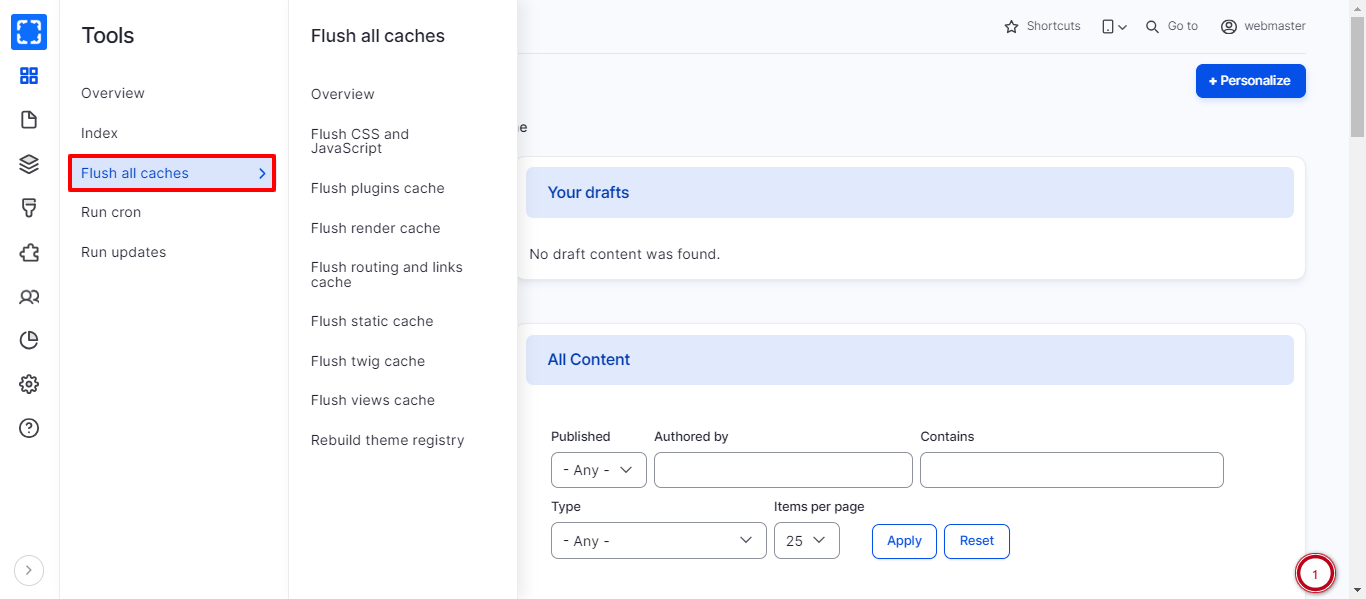
**The Site Admin** approach which is the easiest way, hover the Varbase icon and you will notice **Flush all caches** then click it. The Varbase will now clear all your caches, this might take a couple of seconds then a message will appear indicating your caches are cleared.
Flush All Caches From Varbase Icon
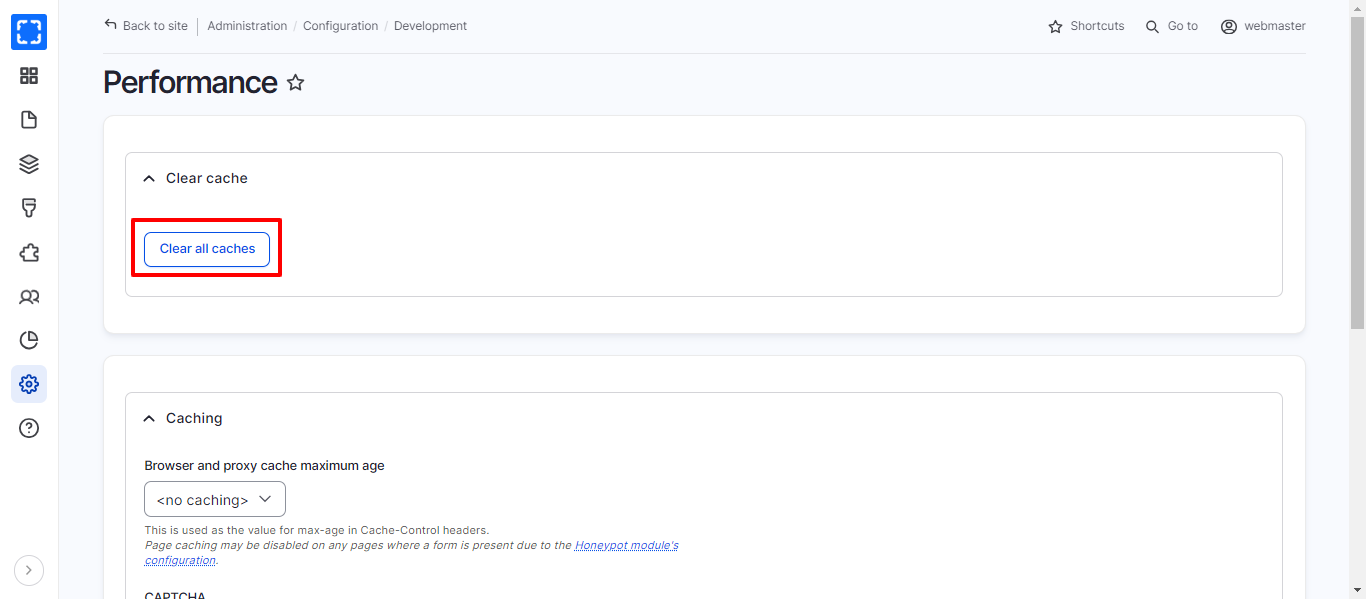
**The Super Admin** approach which you need to navigate through **Administration \ Configurations \ Development \ *****Performance.***
{% hint style="info" %}
In this section, only the super admin has access to the *Performance* section.
{% endhint %}
Clear All Caches From Performance Page
You will notice the *Clear all caches* button, click it. The Varbase will now clear all your caches, this might take a couple of seconds then a message will appear indicating your caches are cleared.