> For the complete documentation index, see [llms.txt](https://docs.varbase.vardot.com/llms.txt). Markdown versions of documentation pages are available by appending `.md` to page URLs; this page is available as [Markdown](https://docs.varbase.vardot.com/10.1.x/content-designers/site-configuration/system/google-analytics.md).
# Google Analytics
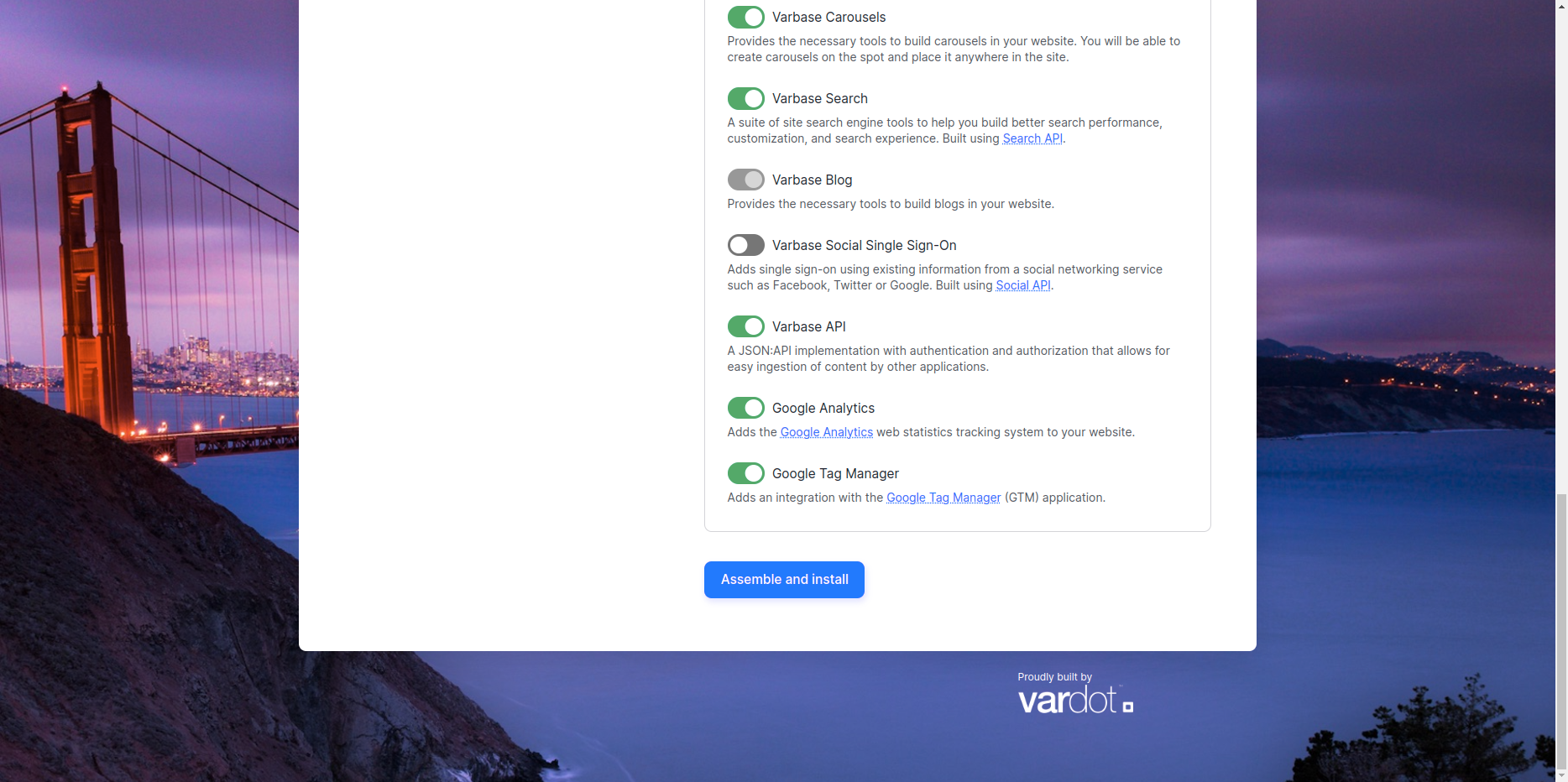
While installing Varbase, the developers had a step to install [**Google Analytics**](https://www.drupal.org/project/google_analytics) and [**Google Tags Manager**](https://www.drupal.org/project/google_tag).
Site Installation List
### Google Analytics:
### How to Navigate the Google Analytics:
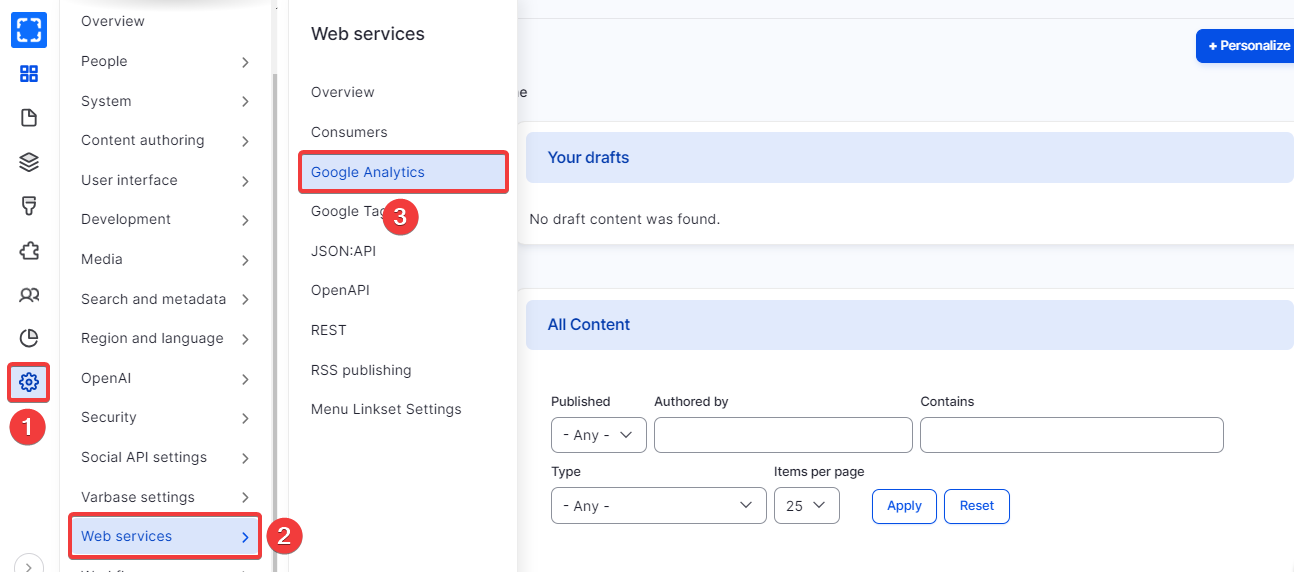
1. Form **Configuration/ Web services/ *****Google Analytics.***
Navigate Google Analytics
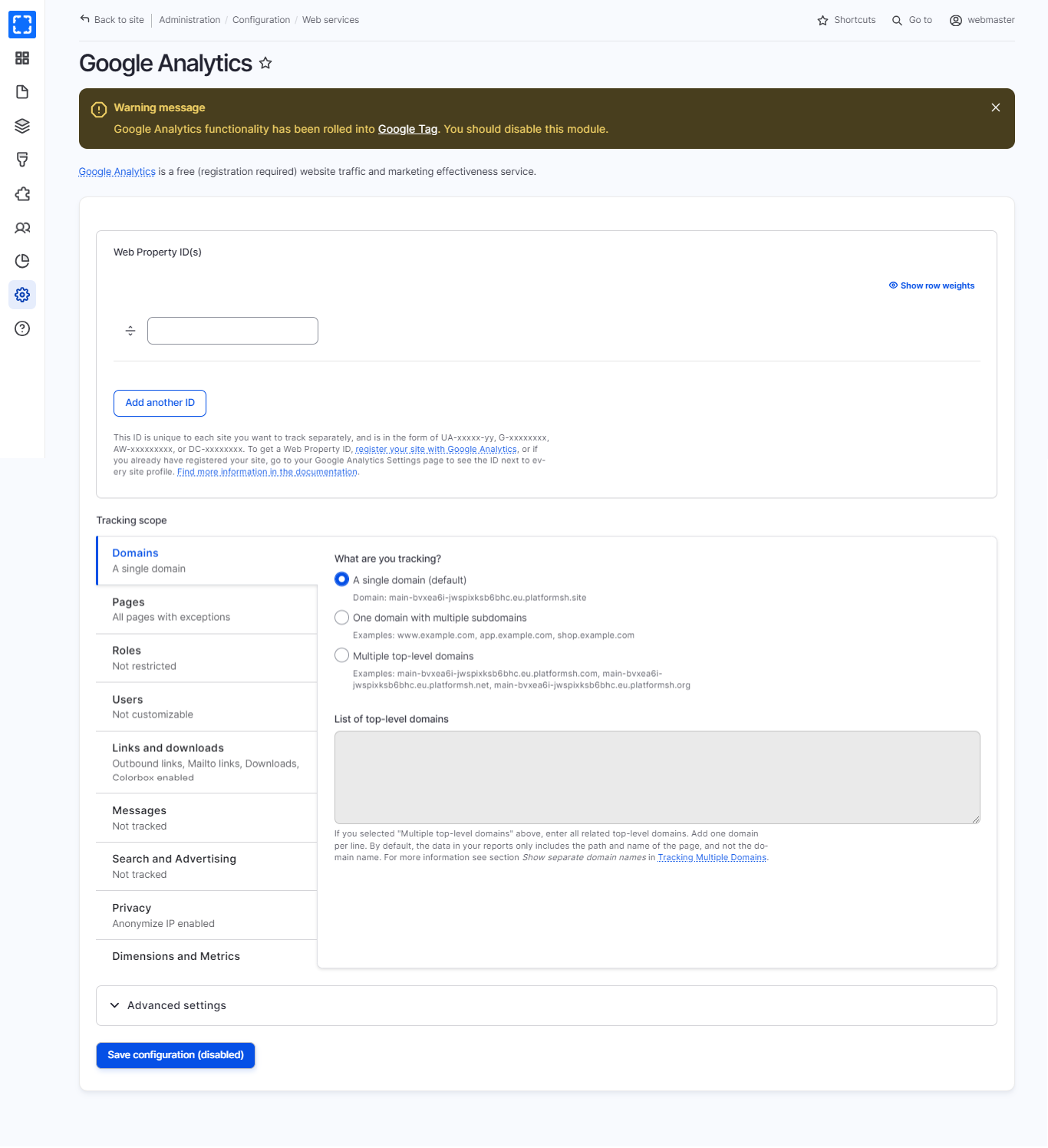
2. You'll find the settings to add and control the site Google Analytics.
1. Add your site id in the **Web Property ID(s)** field.
1. From [Google Analytics](https://marketingplatform.google.com/about/analytics/), Add your business plan to access the Google Councol
2. Copy your ID and add it to the **Web Property ID(s)** field.
2. Fill the information in the following tabs:
* **Domains:** The domain you want to track.
* **Pages:** To extract specific pages from tracking.
* **Roles:** Add tracking for specific roles.
* **Users:** Allow users to customize tracking on their account page.
* **Links and downloads:** Outbound links, Mailto links, Downloads, Colorbox enabled.
* **Messages:** Track messages of type \[Warning, Error, Status].
* **Search and Advertising:** Tracking search and advertising.
* **Privacy:** Anonymize IP enabled.
* **Dimensions and Metrics:** Custom dimensions and metrics.
* **Advanced:** Some additional settings such as caching and Custom JavaScript code.
3. Click on **Save Configuration** button.
Google Analytics Page
***
### Google Tags:
In Google Tags, you can add tags to track components inside the page e.g. Block.
### How to Navigate the Google Tags:
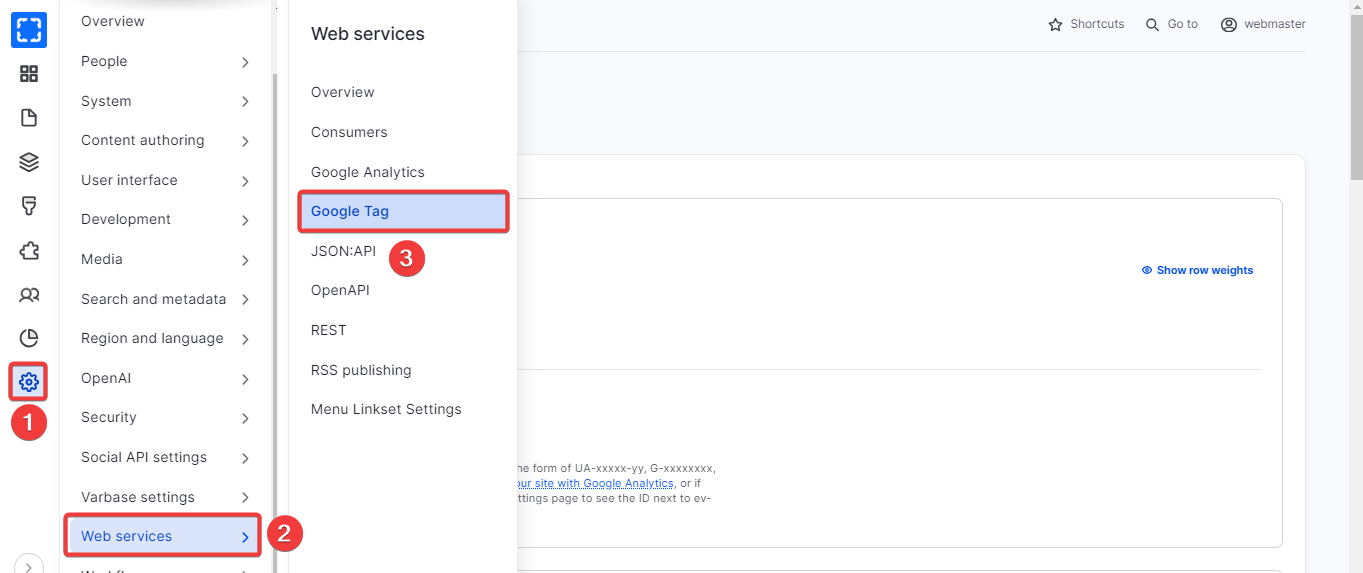
1. Form **Configuration/ Web services/ *****Google Tags.***
Navigate Google Tag
2. You'll find the settings to add and control the site Google Tags.
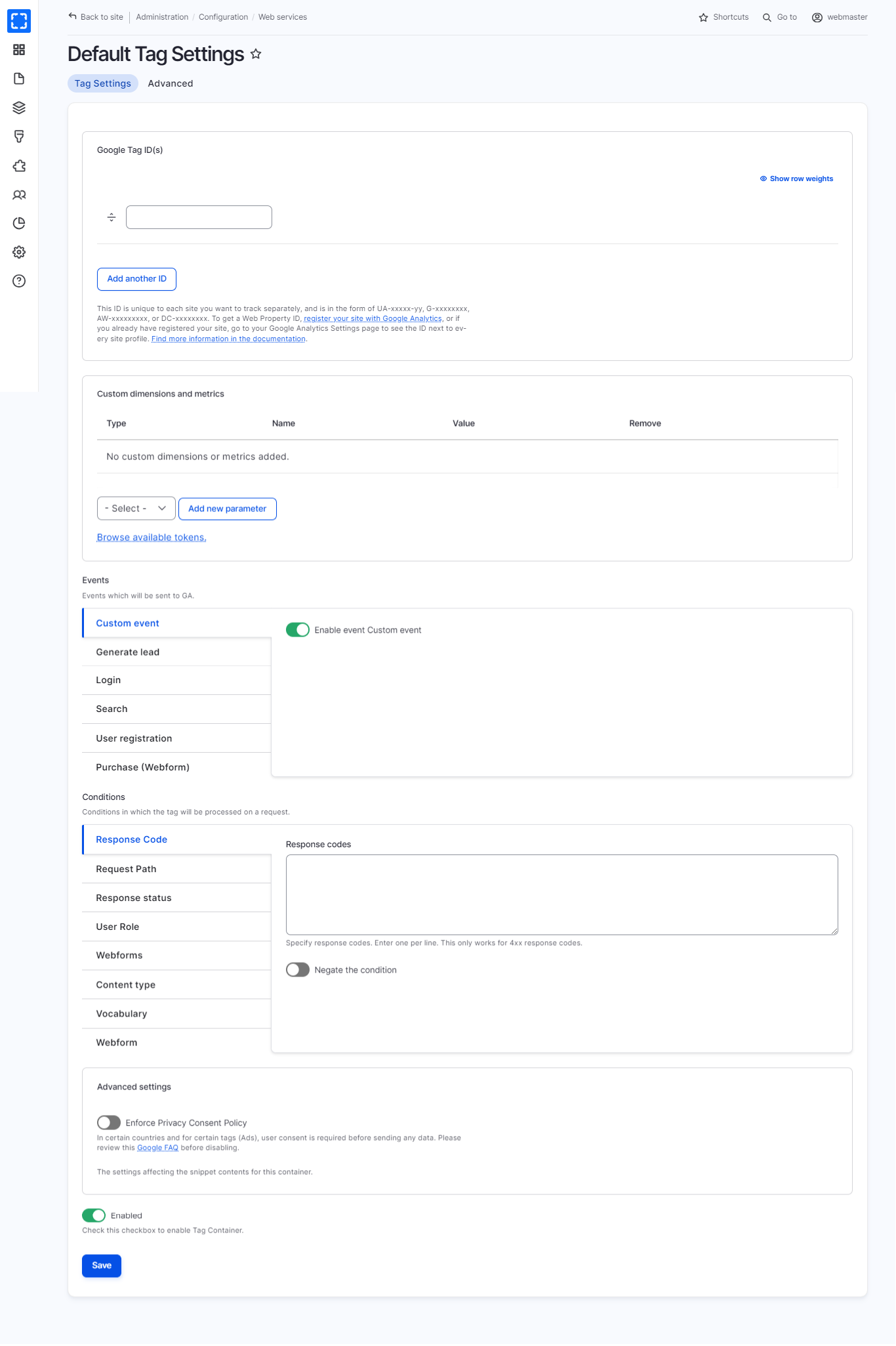
1. Add your site id in the **Google Tag ID(s)** field - ***Get from your developer***Fill the information in the following tabs:
Event tabs:
* **Custom event:** Enable event custom event.
* **Generate lead:** Enable event Generate lead
* **Login:** Enable event Login
* **Search:** Enable event Search
* **User registration:** Enable event User registration
* **Purchase (Webform):** Enable event Purchase (Webform)
Conditions tabs:
* **Response Code:** Specify response codes.
* **Request Path:** Specify pages by using their paths.
* **Response status:** Shows the block on pages with any matching response status.
* **User Role:** Add tracking for specific roles.
* **Webforms:** Select 'Webform from URL' to display this block, when the current request's path contains the selected webform.
* **Content type:** Add tracking to specific content type.
* **Vocabulary:** Add tracking to specific vocabulary.
* **Webform:** Add tracking to specific Webform.
* **Advanced:** Enforce Privacy Consent Policy.
3. Click on **Save.**
Default Tag Settings Page
{% hint style="info" %}
Google Tag has the same practical method as Google Analytics but within the same page.
{% endhint %}
{% hint style="info" %}
For additional information See: [Varbase SEO](/10.1.x/developers/understanding-varbase/core-components/varbase-seo.md) and [Configuring SEO Features](/10.1.x/developers/configuring-a-varbase-site/configuring-seo-features.md)
{% endhint %}