> For the complete documentation index, see [llms.txt](https://docs.varbase.vardot.com/llms.txt). Markdown versions of documentation pages are available by appending `.md` to page URLs; this page is available as [Markdown](https://docs.varbase.vardot.com/9.2.x/developers/configuring-a-varbase-site/security-features/enable-http-password-authentication.md).
# Enable HTTP Password Authentication
## How to Enable HTTP Password Authentication on The Whole Site
The **PHP Authentication Shield** module was packaged with **Varbase Core**, but not enabled on the installation of **Varbase**.
A simple shield for the site with **Apache** authentication. It hides the sites, if the user does not know a simple username/password.
Enable the **PHP Authentication Shield** module to be able to have general shield for the site.
```
drush pm:enable shield
```
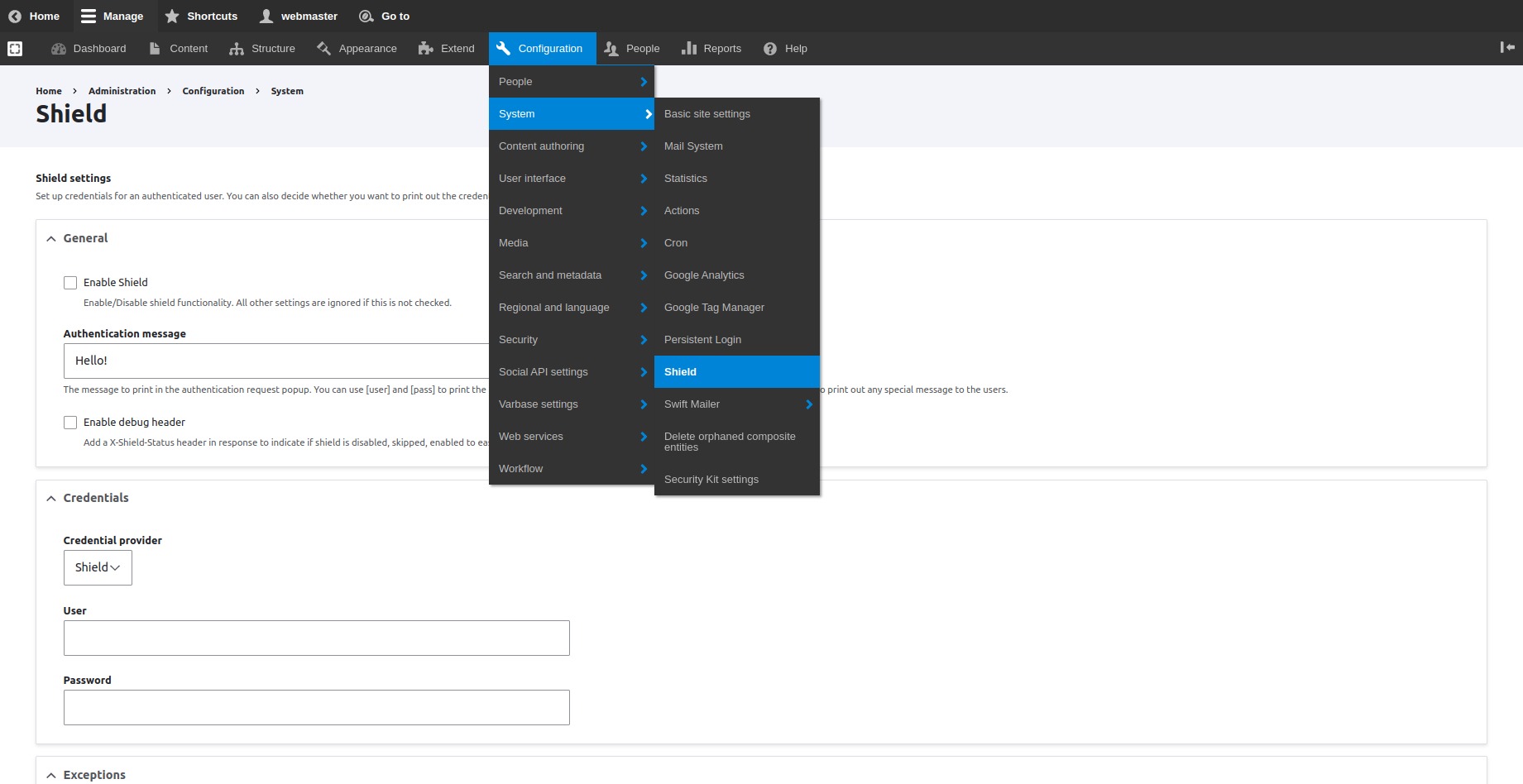
Navigate to **Configurations \ System \ *****Shield*** from the administration toolbar menu.
Navigate to Shield Settings Page
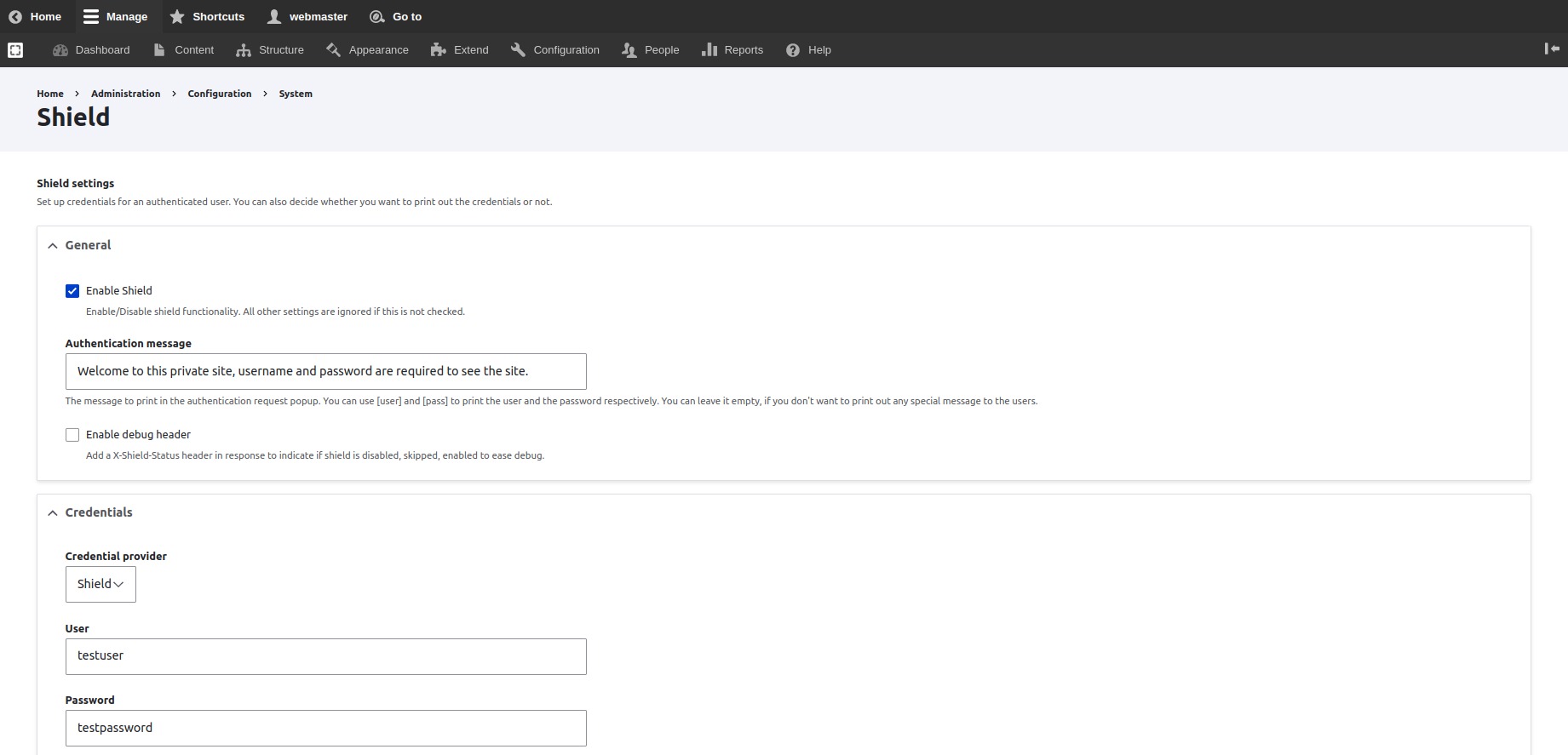
Check or un-check the `"Enable Shield"` checkbox to enable/disable shield functionality. All other settings are ignored if this is not checked.
Add an authentication message to show it in the authentication request popup. Use the `[user]` and `[pass]` tokens to print the user and the password respectively. leave it empty, when not wanting to print out any special message to users.
Provide the desired **User** and **Password** in the credential part of the settings.
Authentication Message, User and Password Example
Press the Save Configuration button to save the changed configurations.
The site will start asking to fill in a user and password on every opened new session.
## How to Enable HTTP Password Authentication on Specific URLs/Pages
Adding HTTP authentication for a specific route/pattern instead of the whole site.
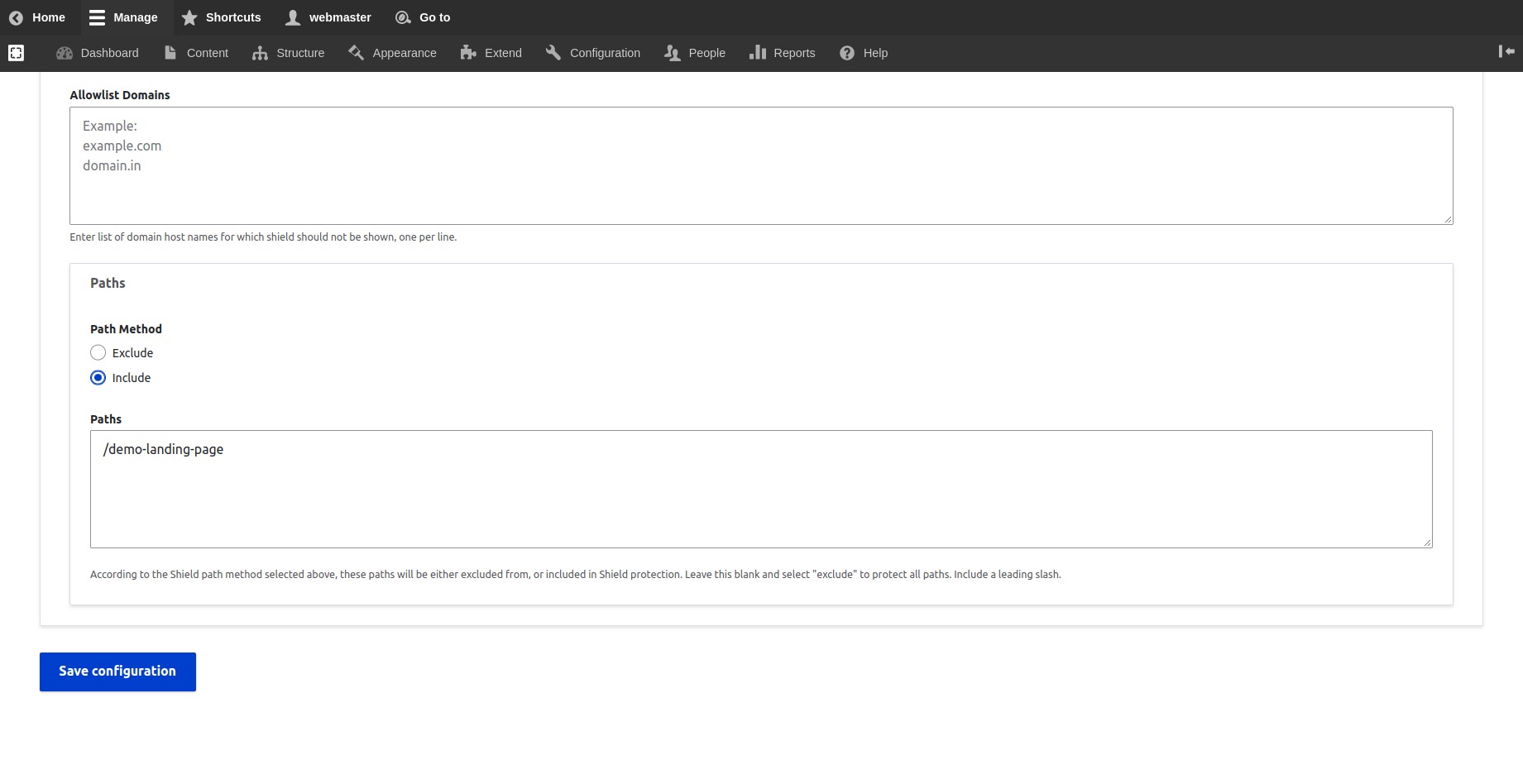
Paths and Path Methods
The list of paths will be either excluded from, or included in Shield protection.
Select `"Include"` to protect only the listed paths.
Include a leading slash to listed internal links.