> For the complete documentation index, see [llms.txt](https://docs.varbase.vardot.com/llms.txt). Markdown versions of documentation pages are available by appending `.md` to page URLs; this page is available as [Markdown](https://docs.varbase.vardot.com/developers/understanding-varbase/varbase-ai-modules/ai-media/generating-media.md).

# Generating Media in the Media Library

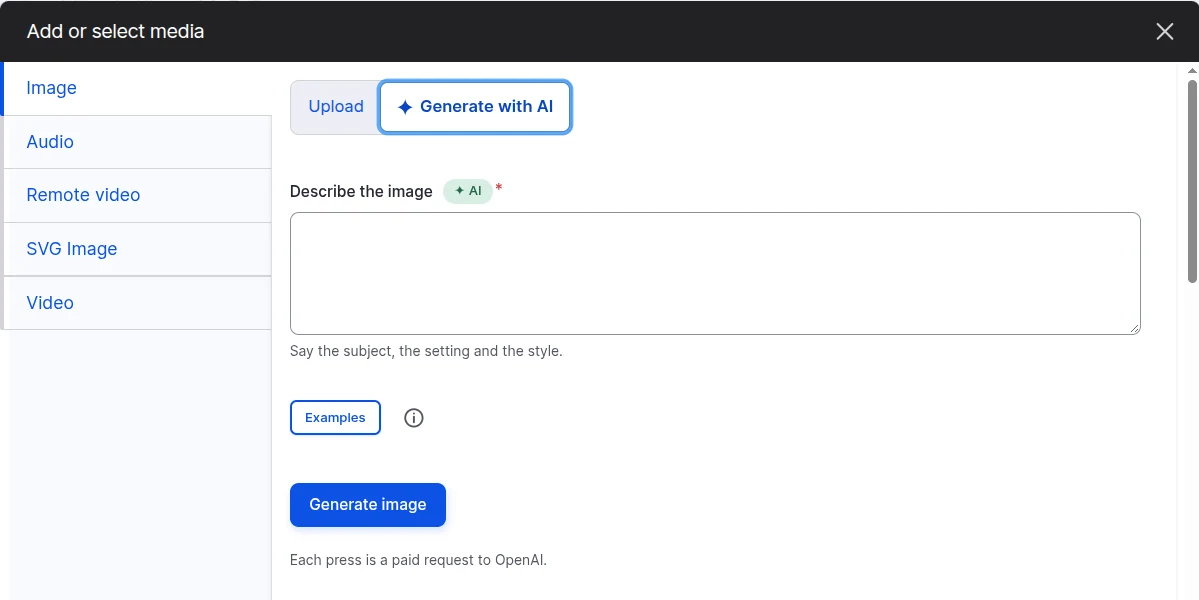
Wherever you pick media (a media field's **Add media**, or **Insert Media** in the editor), the **Media Library** shows the tab of each media type you may add. When a generator saves into that media type, the tab opens with an **Upload | Generate with AI** switch at the top. **Generate with AI** is marked **New** until it is opened. What you generate there is saved as that media type, like an upload in the same tab.

<figure><img src="https://410909369-files.gitbook.io/~/files/v0/b/gitbook-x-prod.appspot.com/o/spaces%2FzBcuWLZ87gvtX5vA2YGD%2Fuploads%2Fgit-blob-70e2f429f54f51214531d008c2ca049d383be0cd%2FVarbase%20AI%20Media%20Base%20-%20Upload%20or%20Generate%20With%20AI.webp?alt=media" alt="The Add or select media dialog on the Image tab, with an Upload and Generate with AI switch at the top, Generate with AI marked New, and the file upload below"><figcaption><p>The Upload or Generate With AI Switch in the Image Tab</p></figcaption></figure>

{% hint style="info" %}
A site can show generation as a tab of its own instead, such as **Generate image with AI** right after **Image**, or after all the other tabs. See [Settings](https://docs.varbase.vardot.com/developers/understanding-varbase/varbase-ai-modules/ai-media/settings.md#media-library-tabs).
{% endhint %}

## Generate

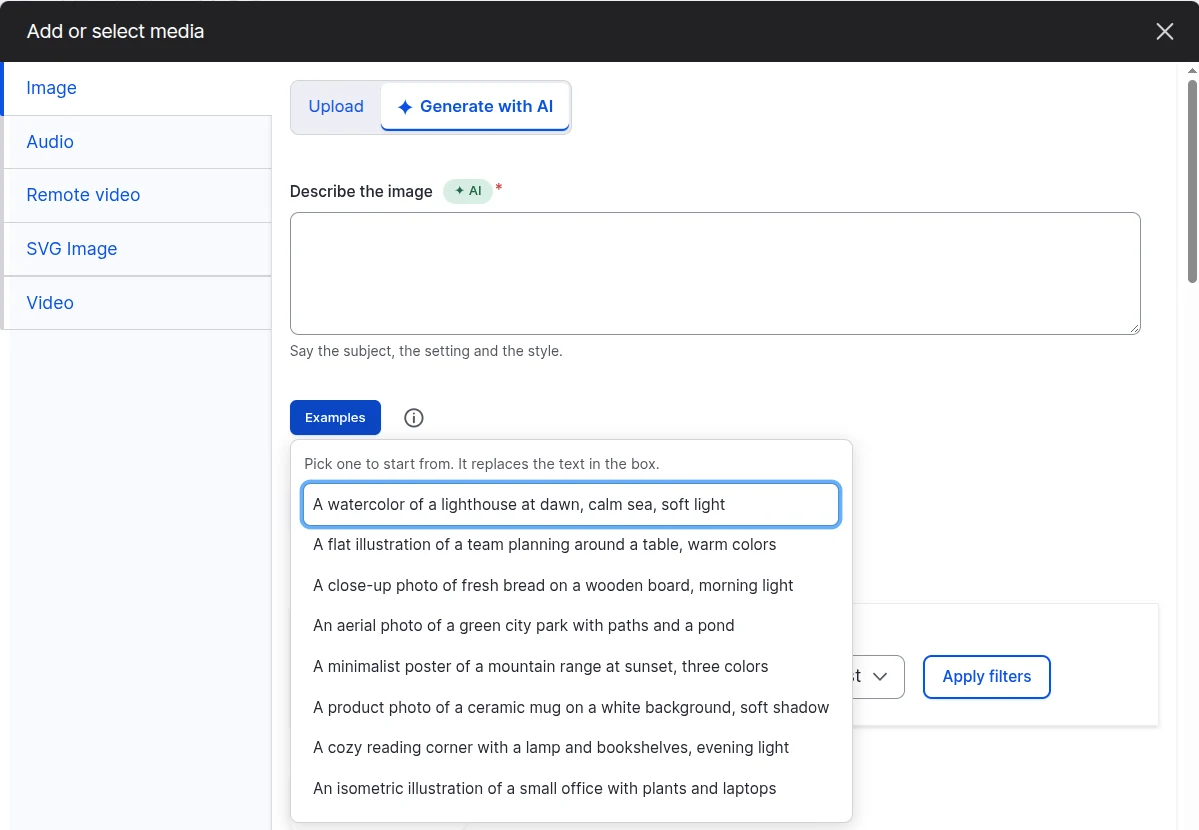
1. Choose **Generate with AI** in the tab of the media type.
2. **Describe the image** (or SVG, video), marked **AI**: say the subject, the setting and the style. The field starts empty.
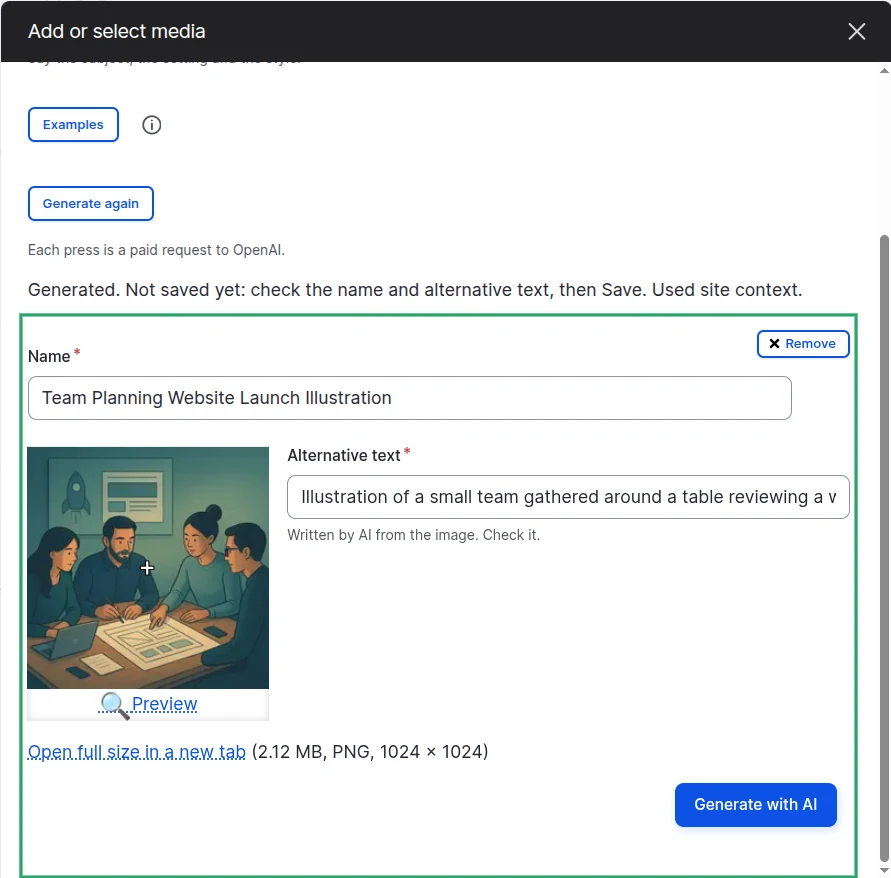
3. **Examples**, beside the field, opens a list of up to eight sample descriptions. Pick one to put it in the field, ready to edit; it replaces the text in the box. If the site offers it, the **Dictate** button fills the description from your voice.
4. The info button beside **Examples** says which provider makes the result and that your description is sent there: "Made by AI with OpenAI. Your description is sent to OpenAI. Check the result before you use it." With site context it adds what context is used.
5. Open **Options**, when the site offers any, to choose a shape (with its pixel size), a format, a quality, a model, or an SVG style. Closed, it shows what is chosen, such as "Options (Square, PNG)".
6. Press **Generate image** (or SVG, video). It reads "Generating…" and the page says it can take up to a minute.

Under **Generate**, "Each press is a paid request to …" reminds you that every press costs credit (not shown for test providers, or when the site turns it off).

<figure><img src="https://410909369-files.gitbook.io/~/files/v0/b/gitbook-x-prod.appspot.com/o/spaces%2FzBcuWLZ87gvtX5vA2YGD%2Fuploads%2Fgit-blob-a5cfb989ab119e9fc19310aeceefecdd351f9e26%2FVarbase%20AI%20Media%20Base%20-%20Generate%20With%20AI%20Mode.webp?alt=media" alt="The Image tab in Generate with AI mode, with an empty Describe the image field, an Examples button, an info button, the Generate image button and a note that each press is a paid request to the provider"><figcaption><p>Generate With AI Mode in the Image Tab</p></figcaption></figure>

<figure><img src="https://410909369-files.gitbook.io/~/files/v0/b/gitbook-x-prod.appspot.com/o/spaces%2FzBcuWLZ87gvtX5vA2YGD%2Fuploads%2Fgit-blob-932418fcee52969d9bd5aaeda4b2cb3e6f2ad771%2FVarbase%20AI%20Media%20Base%20-%20Example%20Descriptions.webp?alt=media" alt="The Examples list open under the description field, with eight sample image descriptions and a note that picking one replaces the text in the box"><figcaption><p>Picking an Example Description</p></figcaption></figure>

## Review, Refine, Save

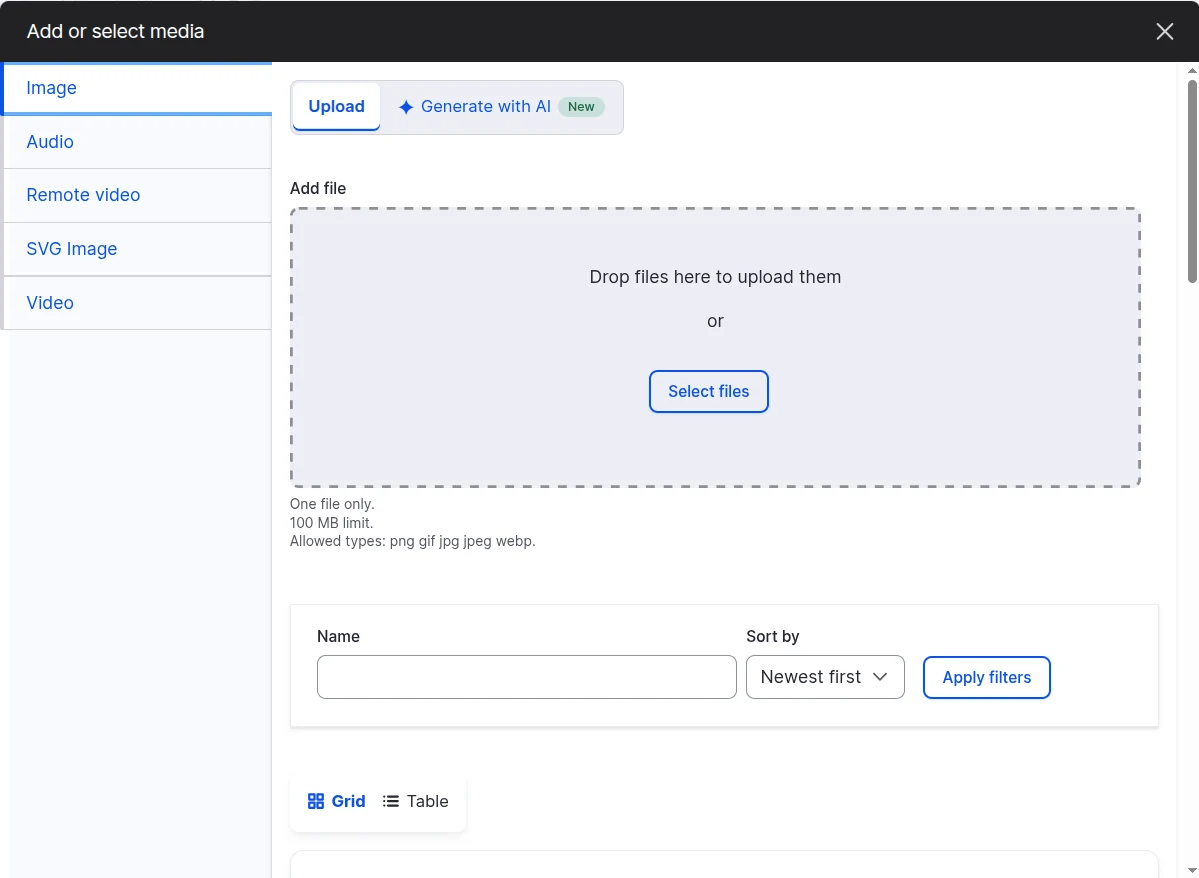
The result waits in the same step as an upload, with its **Name** and, for images and SVGs, its **Alternative text** filled in. By default AI writes both from the result, and the help under the alternative text says so: "Written by AI from the image. Check it." When the site fills them from your description instead, the help says "Prefilled from your description." An image is shown once, at a size you can check, with its file size, format and pixel size and an **Open full size in a new tab** link. When the media type uses **Focal Point**, set it on the generated image as on any upload.

* Change the description and press **Generate again** to replace the result in place.
* **Remove** goes back to the empty form, with your description kept.
* Fix the name and alternative text, then **Save**, **Save and select** or **Save and insert**.

<figure><img src="https://410909369-files.gitbook.io/~/files/v0/b/gitbook-x-prod.appspot.com/o/spaces%2FzBcuWLZ87gvtX5vA2YGD%2Fuploads%2Fgit-blob-8c6d2eaa72f434070d8ec3934fc0b36ec1b02eba%2FVarbase%20AI%20Media%20Base%20-%20Review%20Generated%20Image.webp?alt=media" alt="A generated illustration of a team planning around a table, with the name and alternative text written by AI from the image, the Focal Point crosshair in the centre, and a Generate with AI button under the alternative text"><figcaption><p>Reviewing a Generated Image Before Saving</p></figcaption></figure>

{% hint style="warning" %}
Nothing reaches the library until you save. A result you walk away from is a temporary file that cron removes.
{% endhint %}

## Other Languages

**AI Media** works in the language you write in, for all four kinds of media: image, SVG image, video and audio.

* **Image and SVG image.** Describe the picture in French or Arabic and the result follows the description. The name and alternative text that **AI Media** writes are in that same language.
* **Audio.** The text is read aloud in the language it is written in, so an Arabic text gives an Arabic clip. The name is in that language too.
* **Video.** The description works the same way once an image-to-video provider is set up. None is published on drupal.org yet.

<figure><img src="https://410909369-files.gitbook.io/~/files/v0/b/gitbook-x-prod.appspot.com/o/spaces%2FzBcuWLZ87gvtX5vA2YGD%2Fuploads%2Fgit-blob-3fc2ab5ee3de607deba805d95c89003a8e1c9476%2FVarbase%20AI%20Media%20Base%20-%20French%20Description%20and%20Generated%20Result.webp?alt=media" alt="French Add Image form after generation: the name reads Phare blanc sur falaise au coucher soleil, the French description is filled in, and the preview shows a watercolour of a white lighthouse on a cliff at sunset with a French alternative text"><figcaption><p>A French Description Gives a French Name and Alternative Text</p></figcaption></figure>

On a right-to-left language such as Arabic, the **Add media** form, the **Upload | Generate with AI** switch, the **Options** summary and the players are mirrored with the admin theme (**Gin** and **Default Admin**).

<figure><img src="https://410909369-files.gitbook.io/~/files/v0/b/gitbook-x-prod.appspot.com/o/spaces%2FzBcuWLZ87gvtX5vA2YGD%2Fuploads%2Fgit-blob-864e5d051126ee9546638d4f59ec0422ccb420d3%2FVarbase%20AI%20Media%20Base%20-%20Arabic%20Generate%20Form%20Right%20to%20Left.webp?alt=media" alt="Arabic Add Image form laid out right to left with the Generate with AI switch, a Name field, an empty description field with an AI badge and a Generate button"><figcaption><p>The Generate With AI Form in Arabic, Right to Left</p></figcaption></figure>

<figure><img src="https://410909369-files.gitbook.io/~/files/v0/b/gitbook-x-prod.appspot.com/o/spaces%2FzBcuWLZ87gvtX5vA2YGD%2Fuploads%2Fgit-blob-2a0211752611969ed890e1f43a7a3f2b5c6faf60%2FVarbase%20AI%20Media%20Base%20-%20Arabic%20Generated%20Result%20Right%20to%20Left.webp?alt=media" alt="Arabic Add Image form after generation: the name and alternative text fields hold Arabic text, laid out right to left, beside a preview of a small wooden boat on a calm lake at sunrise"><figcaption><p>An Arabic Description Gives an Arabic Name and Alternative Text</p></figcaption></figure>

<figure><img src="https://410909369-files.gitbook.io/~/files/v0/b/gitbook-x-prod.appspot.com/o/spaces%2FzBcuWLZ87gvtX5vA2YGD%2Fuploads%2Fgit-blob-1340043a97a1df95180fe39bd0916c01e815bb89%2FVarbase%20AI%20Media%20Base%20-%20Arabic%20Audio%20Generated%20Player.webp?alt=media" alt="Arabic Add Audio form after generation: the name and the text to speak are in Arabic, right to left, and the Audio file section shows an MP3 with an audio player"><figcaption><p>Arabic Text Read Aloud Into an Audio Clip</p></figcaption></figure>

{% hint style="info" %}
The module's own interface text is not translated yet, so some labels show in English. Translations come through [localize.drupal.org](https://localize.drupal.org).
{% endhint %}

## When Generate With AI Is Missing or Says It Is Not Set Up

See [Troubleshooting](https://docs.varbase.vardot.com/developers/understanding-varbase/varbase-ai-modules/ai-media/troubleshooting.md).